User Time Off
Users may be unavailable for a period of time because of vacations, leaves or other personal reasons. Time off lets you tell TaskCall in advance when you will be away, so that you are not scheduled for on-call duty during that period. You can create and manage your time off from both the web app and the mobile app.
A time off is defined by when it starts and when it ends. You set this using the Starts on, From, Ends on and To fields. Only dates and times that are in the future can be selected. A time off cannot be created in the past.
Managing Time Off from the Web App
To open your on-call shifts page:
- Click your profile button at the top right corner of the web app.
- Select My On-call Shifts.
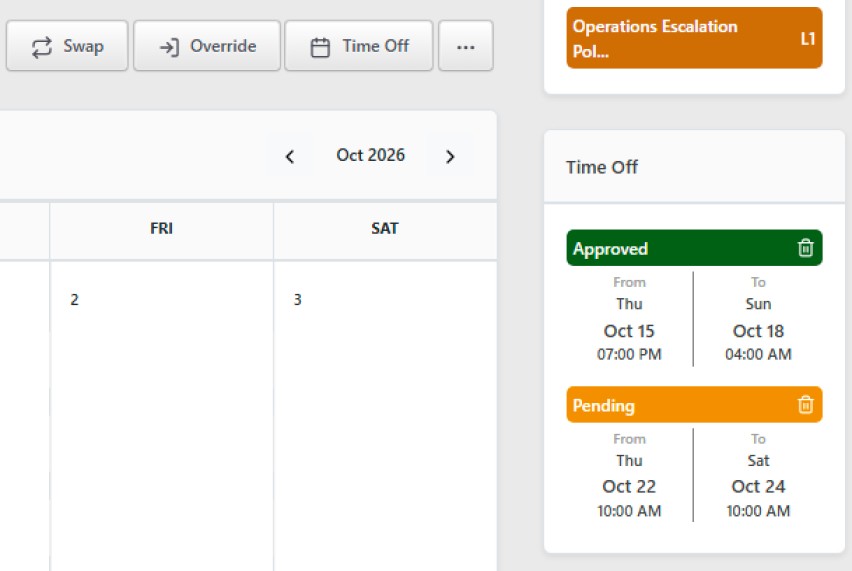
Your time off is listed at the bottom right side of the page.
Creating a Time Off from the Web App
To create a new time off:
- On the My On-call Shifts page, click the Time Off button.
- In the time off modal, select the date in Starts on and the time in From.
- Select the date in Ends on and the time in To.
- Save the time off.
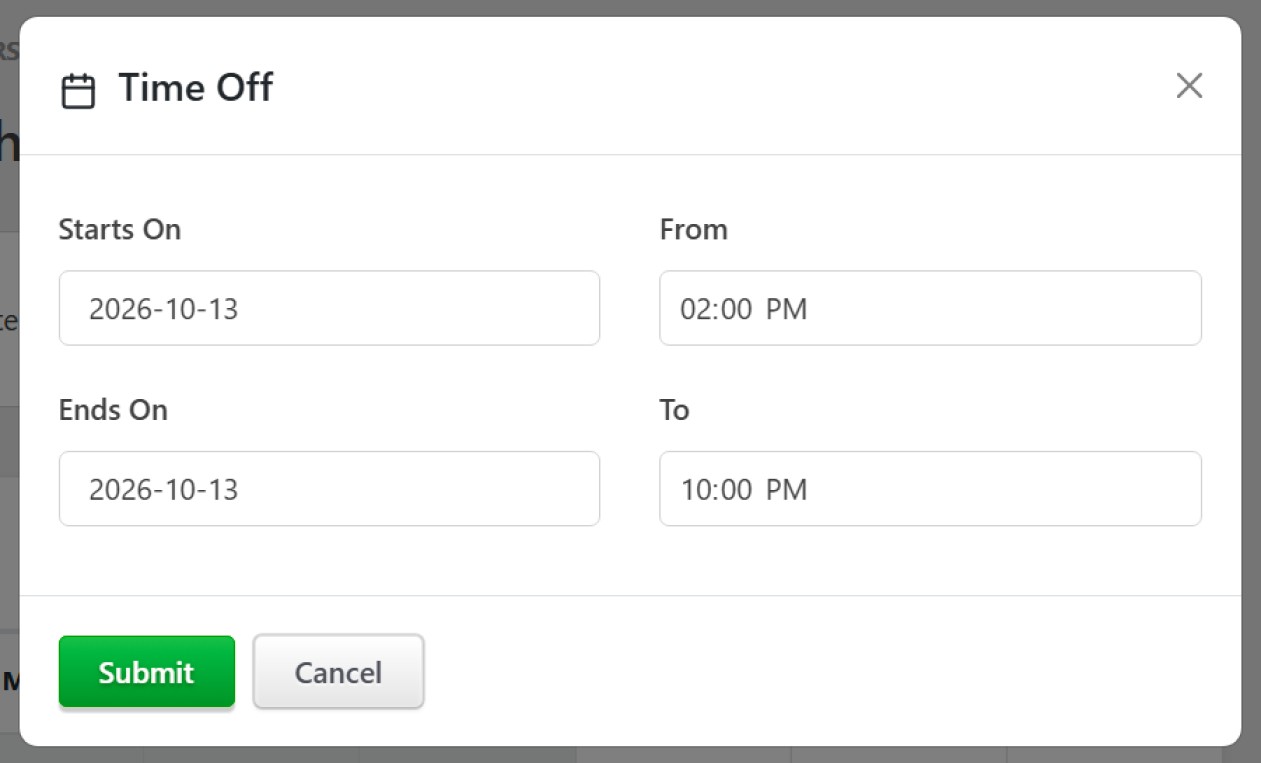
Please note that the dates and times selected cannot be in the past.
Deleting a Time Off from the Web App
You can delete a time off from the list of your time off at the bottom right side of the My On-call Shifts page. Only time off that has not expired can be deleted. Time off that has already expired is kept as a record and cannot be deleted.
Managing Time Off from the Mobile App
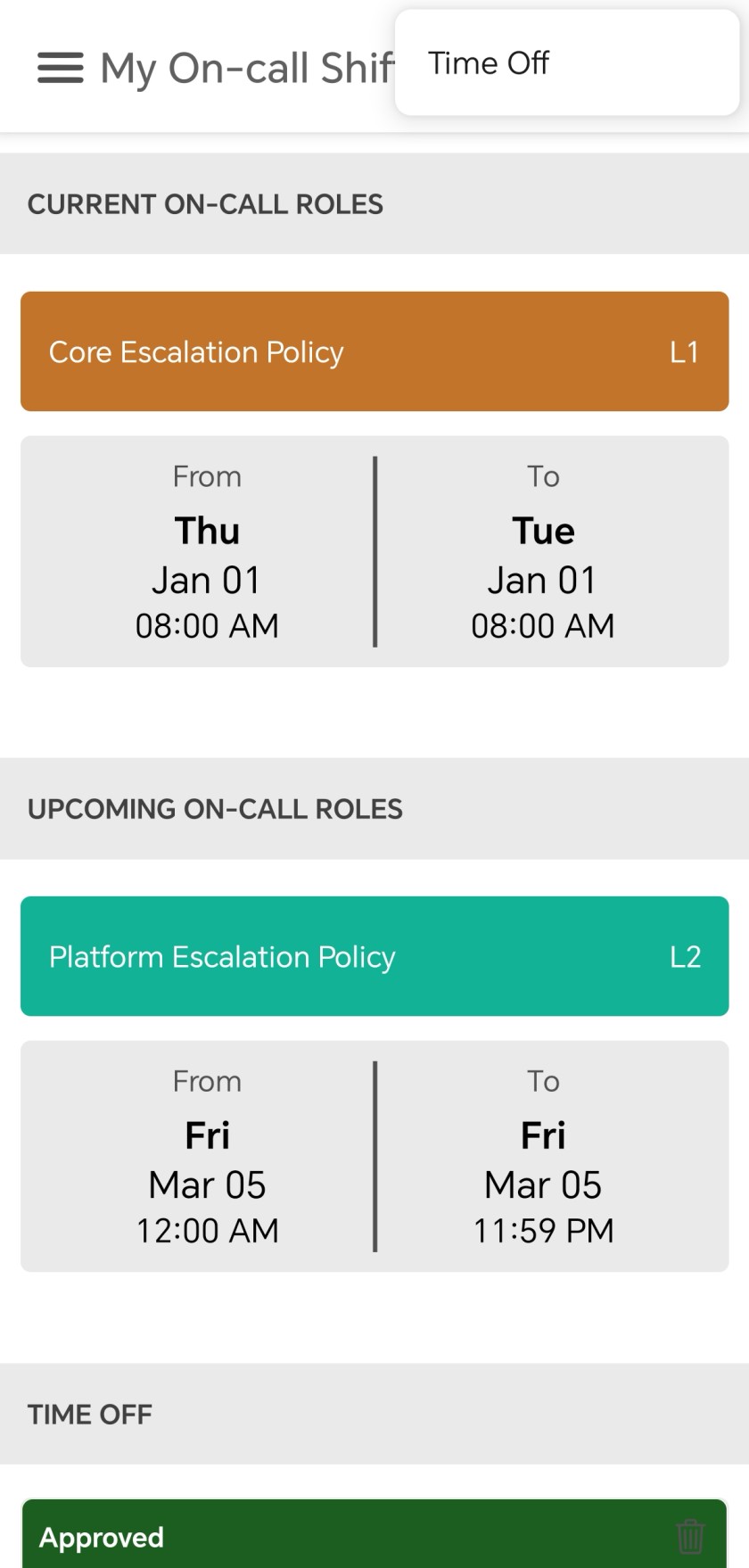
To open your on-call shifts page from the mobile app, open the navigation window and select My On-call Shifts. Your time off is displayed on this page.
Creating a Time Off from the Mobile App
To create a new time off:
- Open the navigation window and select My On-call Shifts.
- Tap the three dots at the top right side of the page to open the menu.
- Tap Time Off. This takes you to the time off page.
- Provide the date in Starts on and the time in From.
- Provide the date in Ends on and the time in To.
- Save the time off.
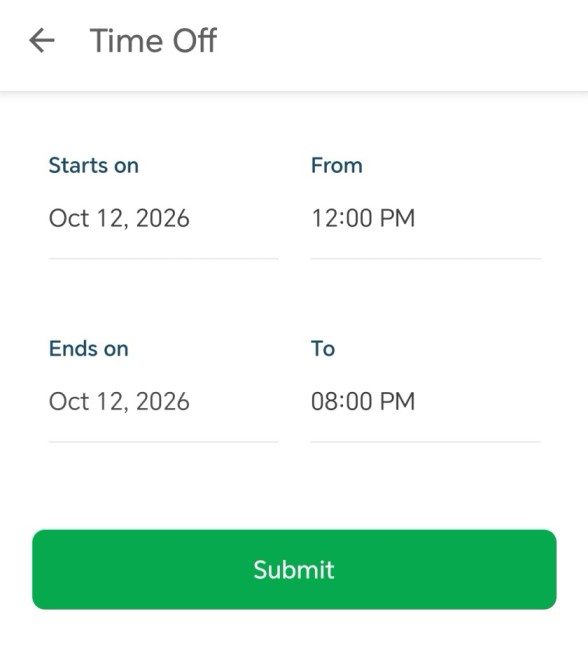
Please note that the dates and times provided cannot be in the past.
Deleting a Time Off from the Mobile App
You can delete a time off from the My On-call Shifts page, where your time off is listed. Only time off that has not expired can be deleted.