
Zoom Team Chat Integration Guide
Zoom Team Chat is Zoom's built-in messaging platform that lets teams communicate through channels, direct messages and threaded conversations without leaving the Zoom ecosystem. TaskCall integrates with Zoom Team Chat to bring incident response and management right where your team works. You can get notified directly in your team channel or in dedicated incident specific channels. Users can act on incidents through interactive messages and execute actions in TaskCall. Incident updates are automatically posted in the chat so all responders can stay in the loop. The integration merges the powerful automations provided by TaskCall with the ease of communication provided by Zoom to help teams resolve incidents even faster than before.
Pointers
- Notifications can be posted to an existing channel or an incident specific channel.
- TaskCall only allows verified Zoom users to respond to incidents from within Zoom.
- Incidents can be created in TaskCall from Zoom using a slash command.
Integrate with Zoom
- In TaskCall, go to Configurations > Services. Select the service you want to integrate with.
- Once you are on the Service details page, click on the "Integrations" tab.
- Click on the "New Integration" button.
- Give the integration a name.
- From the integration types, select the top radio button indicating that you are trying to use a built-in integration and select Zoom. Click Save.
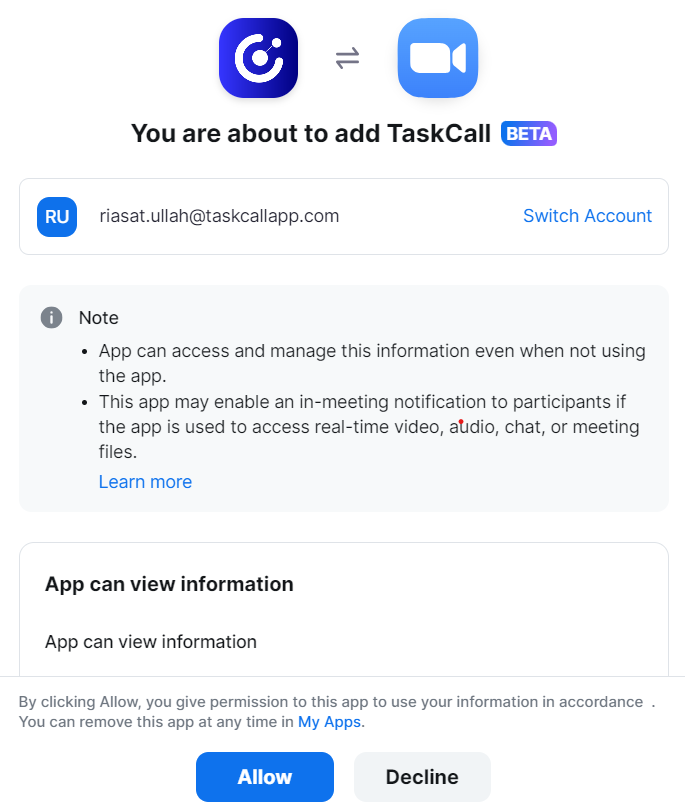
- You will be redirected to Zoom to authorize the integration.
- In Zoom you will be shown the list of permissions that TaskCall requires for the integration. click Allow. You will be redirected to TaskCall.
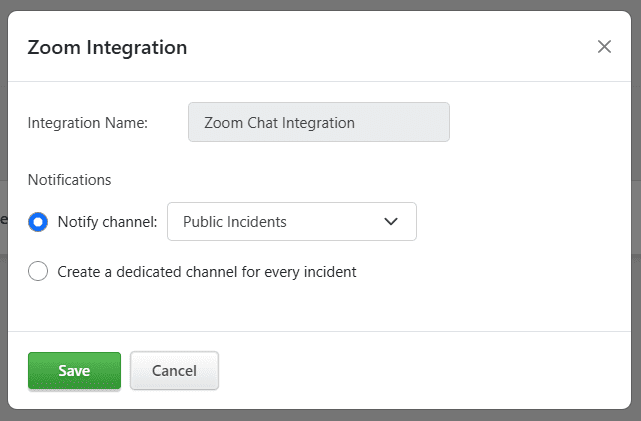
- If the authorization succeeds, you will be redirected to TaskCall to select your notification channel preference. If you would like to be notified to your team channel for all incidents, then select that channel from the list of channels shown. Otherwise, choose the option to create a new incident specific channel for each incident. Click Save to complete the integration.
- While the integration has been created at this point, it would not allow users to interact with TaskCall from Zoom Team Chat as yet. All users who want to respond to incidents from Zoom must verify their Zoom accounts with their respective TaskCall accounts. The verification command is:
/taskcall verify-user {taskcall preferred username}
Users who have verified themselves once already for another Zoom integration can skip this step.
Verify Your Zoom Account
All users must verify and connect their Zoom and TaskCall accounts. Users who are not verified will not be able to take any actions in TaskCall from their Zoom account.
Slash Commands
TaskCall offers 4 primary slash commands. Users can use the Zoom slash commands to:
- Verify themselves /taskcall verify-user {preferred username}
- Get their associated TaskCall preferred username /taskcall get-user
- Dissociate their TaskCall account from Zoom /taskcall remove-user
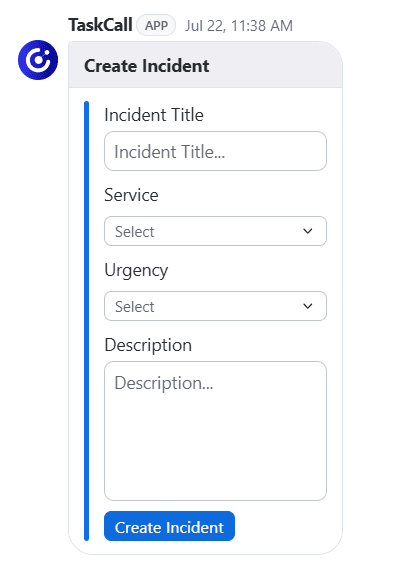
- Manually trigger incidents on the integrated service /taskcall create-incident
Some Actions Require Business and Digital Operations Plan
Add Responders, Run Workflow and Status Update are only available in the Business and Digital Operations plans.
Notifications and Actions
As soon as an incident occurs on the integrated service, TaskCall dispatches actionable notifications to the connected channel. The notification contains elaborate details about the incident including available metric snapshots. All the context you need to address the issue will be presented to you in a concise form. All the tools you need to mobilize the response and gather the rest of your team will be at the tip of your hands.
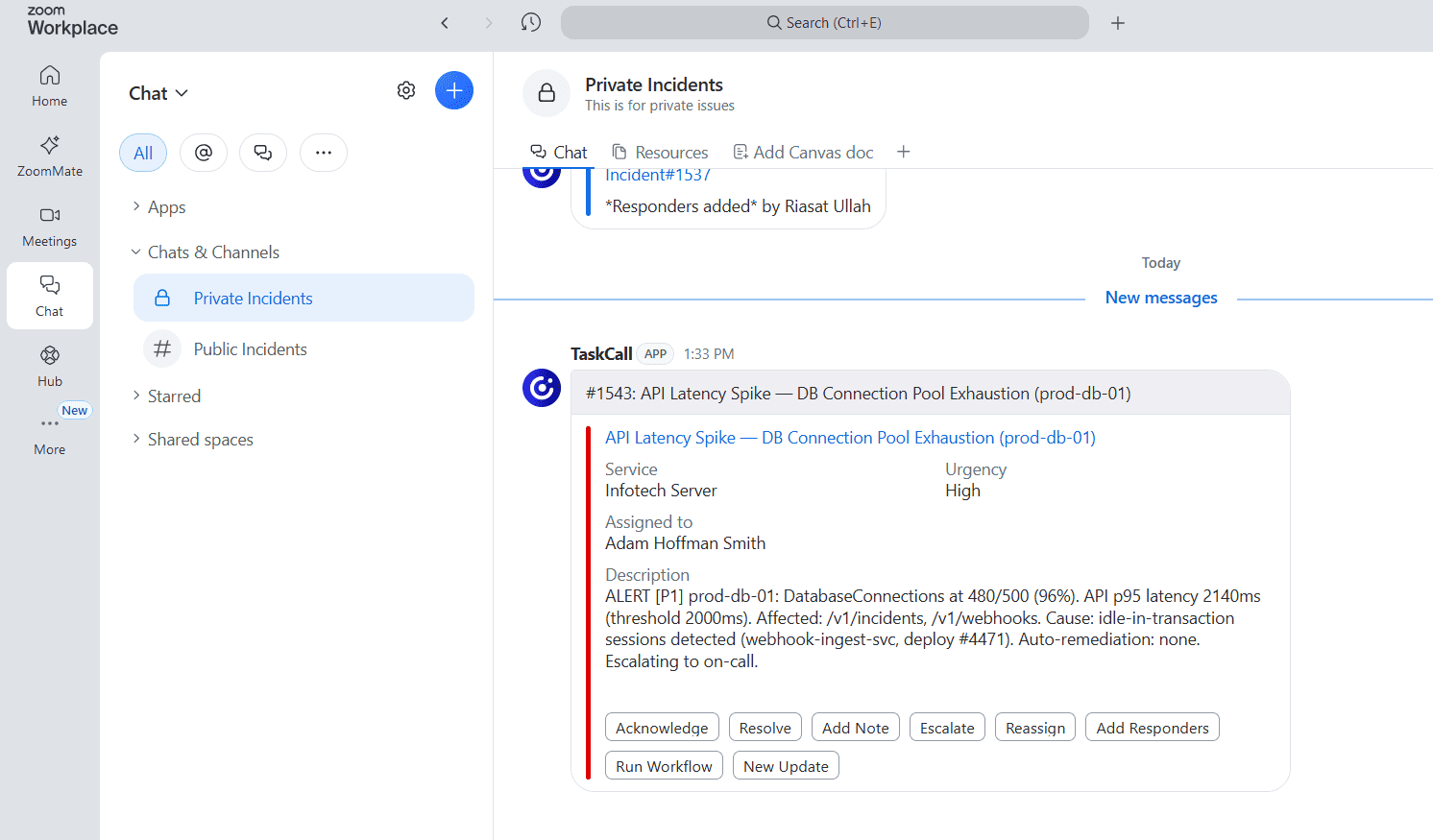
- Acknowledge: Acknowledge an incident directly from Zoom Team Chat to take ownership of it and notify the rest of the team that it is being addressed.
- Resolve: Mark an incident as resolved once it has been addressed, indicating to the team that no further action is required.
- Add Note: Attach contextual notes to an incident for the benefit of other team members. These notes may also serve as a useful reference when similar incidents occur in the future.
- Escalate: Escalate an incident to secondary support if it cannot be resolved by the current assignee.
- Reassign: Reassign an incident to a more appropriate team member if the current assignee is not suited to handle it.
- Add Responders: Add additional team members to an incident when further assistance is required. TaskCall automatically notifies the relevant users and policies, eliminating the time otherwise spent locating and contacting the appropriate personnel.
- Run Workflows: Execute a predefined set of actions simultaneously with a single command, directly from within Zoom Team Chat.
- Post Status Update: Provide status updates to keep the team informed of progress, thereby reducing unnecessary interruptions from stakeholders and business managers.
TaskCall's Zoom integration is designed around the workflows of modern DevOps and IT-Ops teams. Bring incident response and management to your existing stack without having to adapt to a new system.
Delete Zoom Integration
If you would like to delete your TaskCall Zoom integration, please follow through with these instructions.
- Login to your Zoom Account and navigate to the Zoom App Marketplace.
- Click Manage >> Added Apps or search for the "TaskCall" app.
- Click the "TaskCall" app.
- Click Remove.
- Then login to your TaskCall account. Navigate to Configurations > Conference Bridges and delete the conference bridges you created with your Zoom integration.