
Observium Integration Guide
Observium is a low-maintenance auto-discovering network monitoring platform supporting a wide range of device types, platforms and operating systems including Cisco, Windows, Linux, HP, Juniper, Dell, FreeBSD, Brocade, Netscaler, NetApp and many more.
TaskCall's Observium integration brings alerts triggered on Observium from threshold breaches to be brought to the forefront. Use TaskCall's powerful incident response and management system to resolve incidents in real time.
Pointers
- The integration happens between a TaskCall service and Observium.
- Incidents will automatically resolve in TaskCall when metrics fall back within the normal threshold.
- At the moment this integration only supports receiving alerts in TaskCall from Observium.
In TaskCall
- Go to Configurations > Integrations and click New Integration.
- Select the Observium integration.
- Give the integration a name and configure how incidents will be created. Only the Default Service field is required. The rest are optional.
- Incidents (Optional)
- TaskCall automatically maps incoming payloads with internal attributes to create incidents. However, this can be customized in the Incidents tab. Constant values can be included alongside placeholders to dictate which attributes should map to the Incident Title, Description, Tags, Snapshots and Vendor URL. To insert a placeholder use double curly braces.
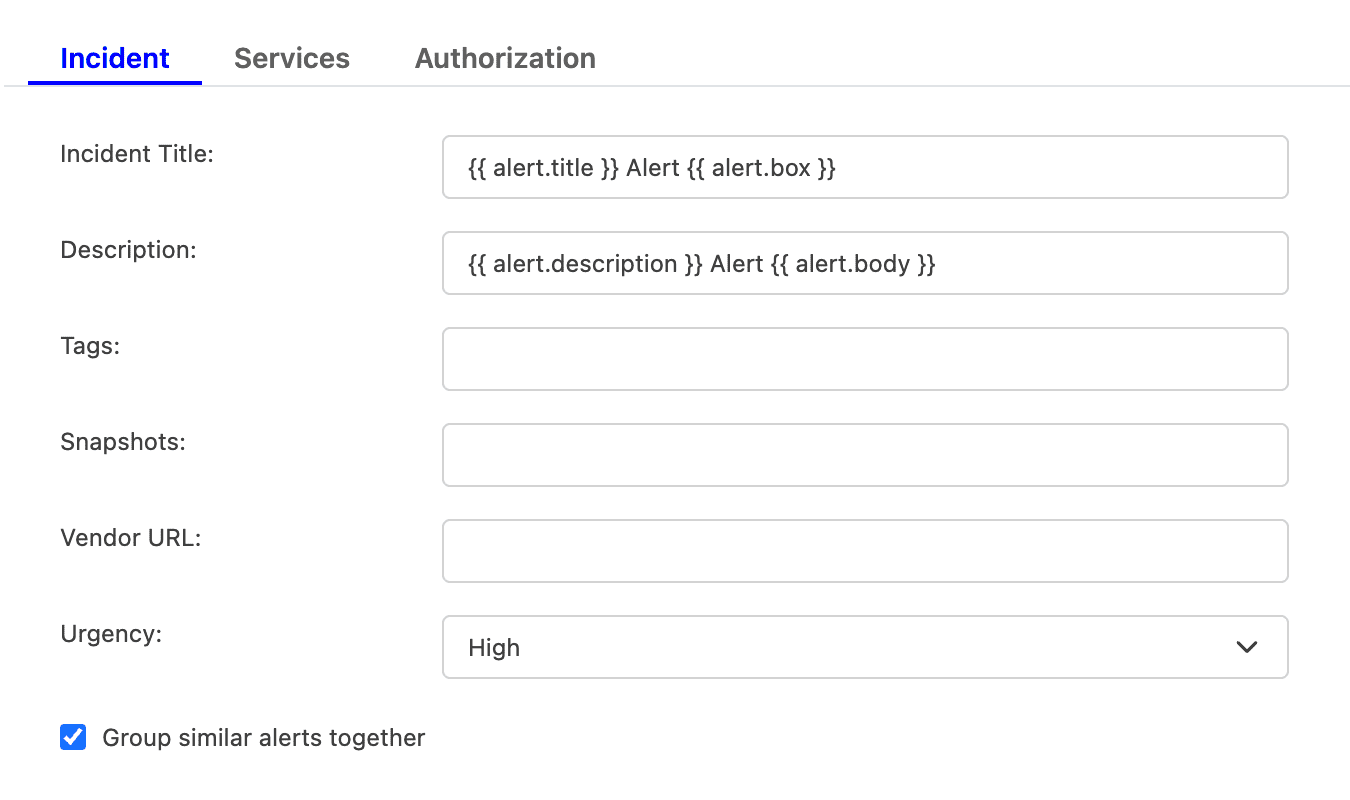
For example, if you enter {{ alert.title }} in the Incident Title field, TaskCall will look for an attribute called "title" nested inside another attribute called "alert" in the incoming payload. If the nested attribute exists, its corresponding value will be pulled from the payload and inserted. If the nested attribute does not resolve successfully, TaskCall will fall back to the default mapping.
If you are unsure, please leave the fields empty. TaskCall will use the default mapping to create the incident for you. - Select the Urgency level the incident should be created at.
- Select the option to Group similar alerts together if you would like follow up triggers from the same alert source to be grouped into the same incident. If you leave this option unchecked, then a new incident will be created for every trigger. (This behavior is specific to new triggers; not updates to an alert.)
- Click Next to move on to the Services tab.
- TaskCall automatically maps incoming payloads with internal attributes to create incidents. However, this can be customized in the Incidents tab. Constant values can be included alongside placeholders to dictate which attributes should map to the Incident Title, Description, Tags, Snapshots and Vendor URL. To insert a placeholder use double curly braces.
- Services (Required)
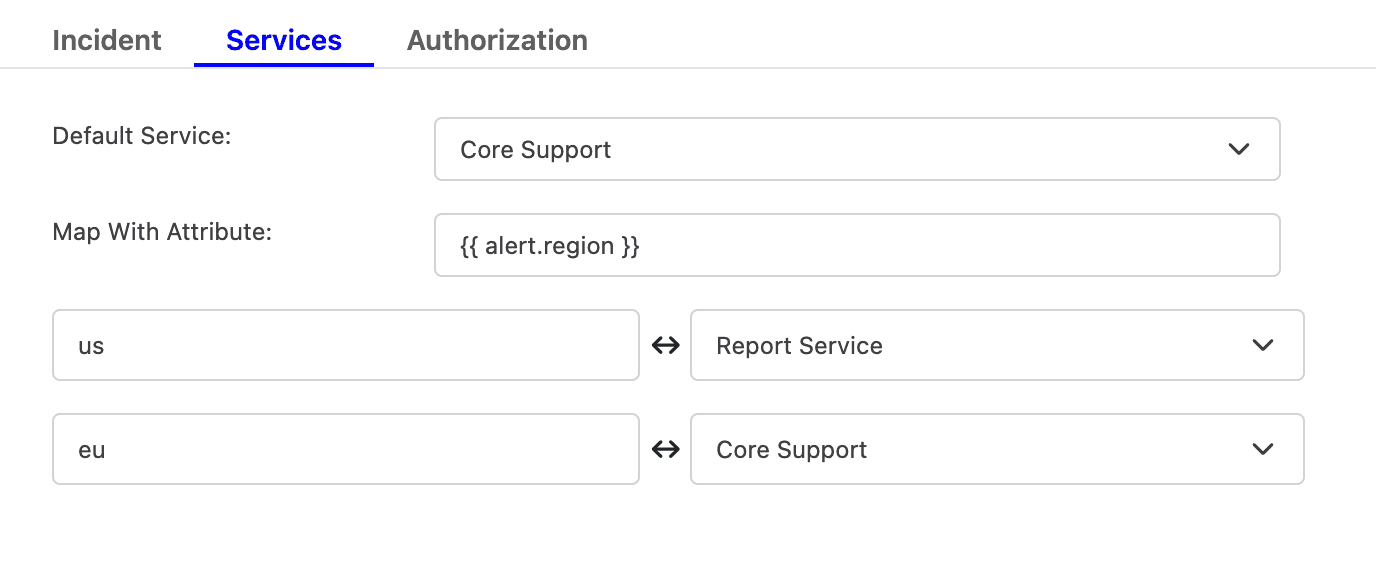
- Select the Default Service incidents should be sent to. To route incidents to different services instead, set Map With Attribute to the attribute to route by using a placeholder. Then, map each value it can take to the service that should receive it.
For example, to route by a region attribute sent in the payload, set Map With Attribute to {{ region }}, then map US to one service and EU to another, and so on.
- Click Next to move on to the Authorization tab.
- Select the Default Service incidents should be sent to. To route incidents to different services instead, set Map With Attribute to the attribute to route by using a placeholder. Then, map each value it can take to the service that should receive it.
- Authorization (Optional)
- The Authorization tab allows a Bearer Token and an IP Allowlist be added if you would like to restrict who is able to send alerts to this integration. If you are unsure, this can be skipped.
- Once done, click Save.
- Copy the Integration Url that is issued for the integration. This will be used to set up the notification in Observium.
In Observium
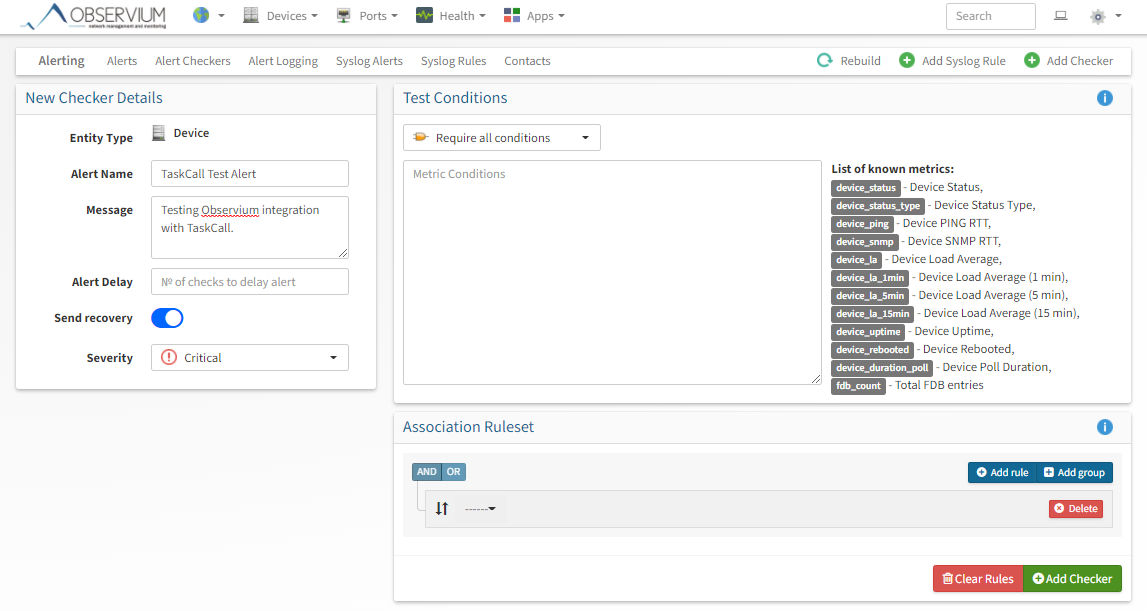
- Click on the globe icon, select Alerts from the dropdown menu, and then select Add Checker once you are on the Alerts page.

- Select the Entity Type, give the alert a name, ensure to enable the Send Recovery option, select the serverity, and choose the conditions and associations. Click Add Checker.
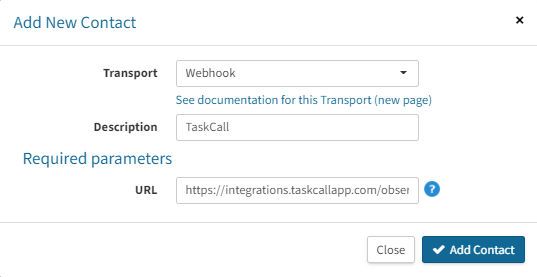
- Click on the globe icon again, select Contacts from the dropdown menu, and then select Add Contact once you are on the Contacts page.
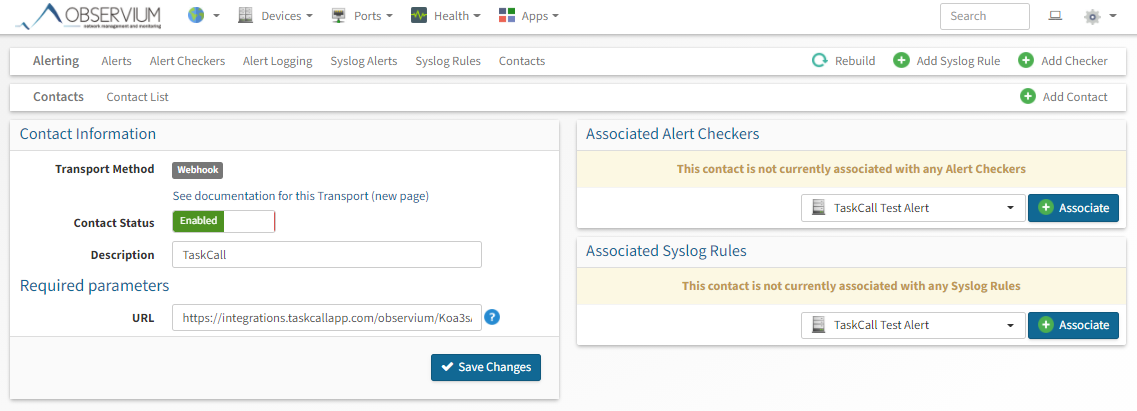
- Set transport to be Webhook, give a description and then paste the Integration Url you copied over from TaskCall. Click Add Contact.
- Now we need to select the alerts that should notify this contact. To do so, go back to the Contacts page. Your newly created contact will be listed there. Click on it.
- On the contact details page, associate the alert you created earlier (or any other alert) to this TaskCall contact so that whenever the alert is raised it will be sent to TaskCall. Once you are done, click Save Changes.
- Congratulations! You have successfully integrated your Observium alerts with TaskCall.