SolarWinds Orion Integration Guide
SolarWinds Orion is a powerful IT infrastructure monitoring platform. The platform allows effective IT administration across servers, databases, network and the overall computerized systems. Although it requires a Windows based host, it can be used to monitor components based in other operating systems like Linux using agents.
Products on the platform like Network Performance Monitor (NPM) and Server & Application Monitor (SAM) trigger alerts if certain conditions are breached. These robust monitors help you identify system incidents effectively. By using TaskCall's SolarWinds Orion integration you can make these alerts more discoverable and reduce system downtime.
Pointers
- The integration is between a TaskCall service and SolarWinds Orion.
- Incidents will automatically resolve in TaskCall when alert conditions reset themselves.
- This integration only receives alerts in TaskCall from SolarWinds Orion.
In TaskCall
- Go to Configurations > Integrations and click New Integration.
- Select the SolarWinds Orion integration.
- Give the integration a name and configure how incidents will be created. Only the Default Service field is required. The rest are optional.
- Incidents (Optional)
- TaskCall automatically maps incoming payloads with internal attributes to create incidents. However, this can be customized in the Incidents tab. Constant values can be included alongside placeholders to dictate which attributes should map to the Incident Title, Description, Tags, Snapshots and Vendor URL. To insert a placeholder use double curly braces.
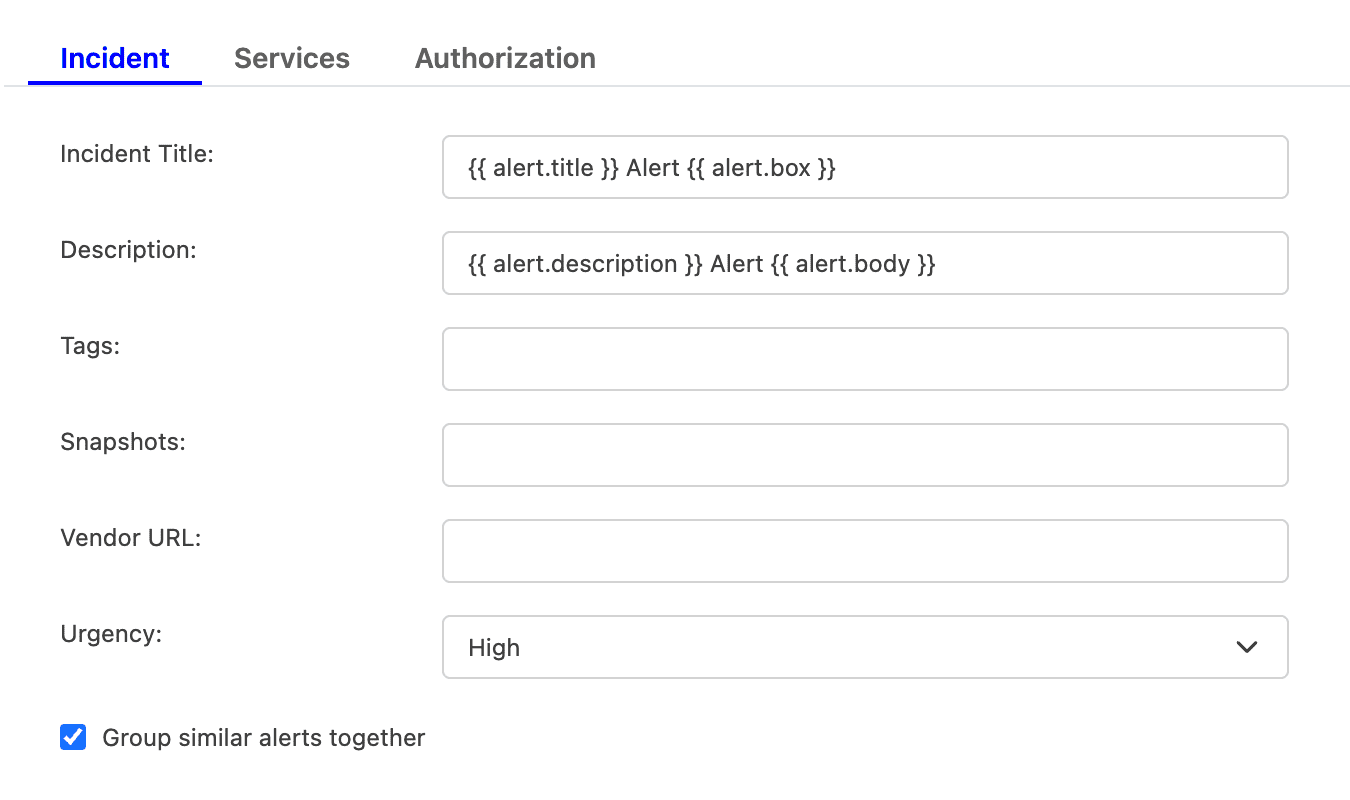
For example, if you enter {{ alert.title }} in the Incident Title field, TaskCall will look for an attribute called "title" nested inside another attribute called "alert" in the incoming payload. If the nested attribute exists, its corresponding value will be pulled from the payload and inserted. If the nested attribute does not resolve successfully, TaskCall will fall back to the default mapping.
If you are unsure, please leave the fields empty. TaskCall will use the default mapping to create the incident for you. - Select the Urgency level the incident should be created at.
- Select the option to Group similar alerts together if you would like follow up triggers from the same alert source to be grouped into the same incident. If you leave this option unchecked, then a new incident will be created for every trigger. (This behavior is specific to new triggers; not updates to an alert.)
- Click Next to move on to the Services tab.
- TaskCall automatically maps incoming payloads with internal attributes to create incidents. However, this can be customized in the Incidents tab. Constant values can be included alongside placeholders to dictate which attributes should map to the Incident Title, Description, Tags, Snapshots and Vendor URL. To insert a placeholder use double curly braces.
- Services (Required)
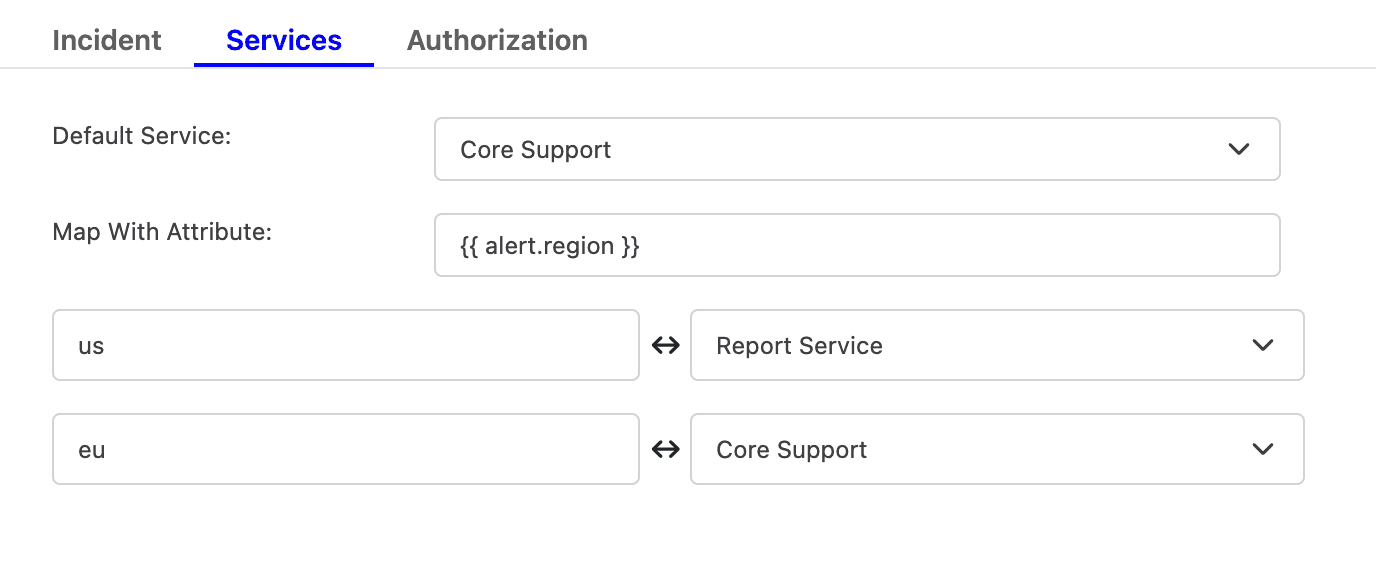
- Select the Default Service incidents should be sent to. To route incidents to different services instead, set Map With Attribute to the attribute to route by using a placeholder. Then, map each value it can take to the service that should receive it.
For example, to route by a region attribute sent in the payload, set Map With Attribute to {{ region }}, then map US to one service and EU to another, and so on.
- Click Next to move on to the Authorization tab.
- Select the Default Service incidents should be sent to. To route incidents to different services instead, set Map With Attribute to the attribute to route by using a placeholder. Then, map each value it can take to the service that should receive it.
- Authorization (Optional)
- The Authorization tab allows a Bearer Token and an IP Allowlist be added if you would like to restrict who is able to send alerts to this integration. If you are unsure, this can be skipped.
- Once done, click Save.
- Copy the Integration Url that is issued for the integration. This will be used to set up the notification in SolarWinds Orion.
In SolarWinds Orion
SolarWinds Orion is a large platform. The following instructions requires at least some familiarity with the platform.
- Open the Orion Web Console.
- Go to Settings > All Settings. Scroll down to Alerts & Reports. Then click on Manage Alerts.
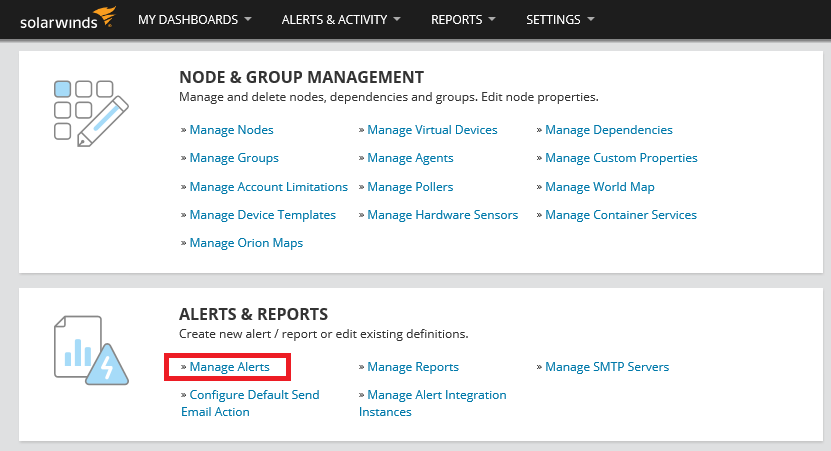
- On the Manage Alerts page, click Add New Alert.
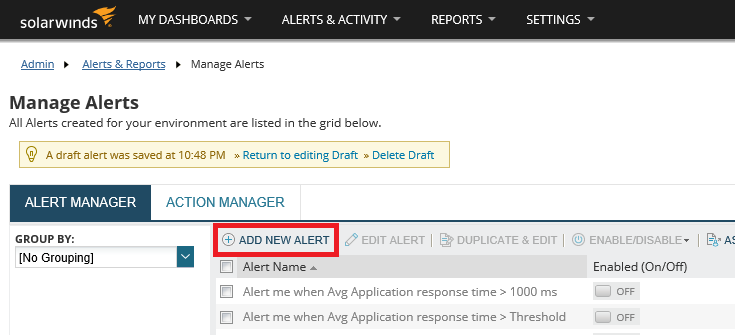
- There are several steps involved in creating a new alert. The modal that opens will guide you through them. Simply click Next in every step to follow through.
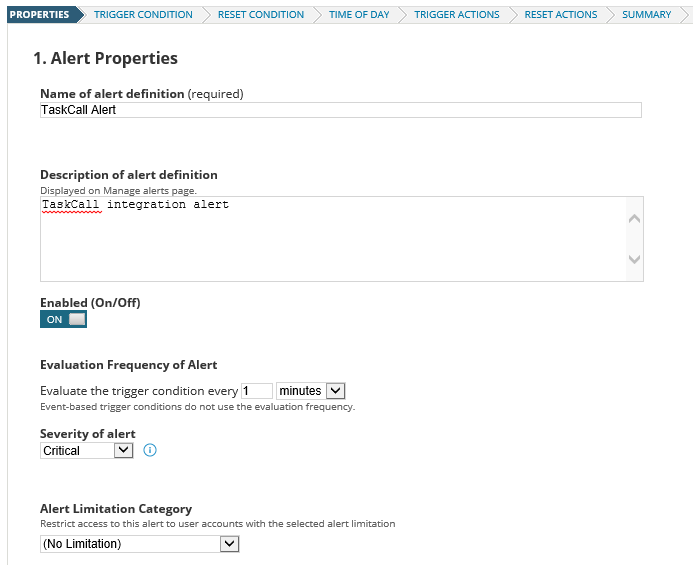
- At first give the alert a name and a description. Define how often the alert should run and at what severity level they should be triggered.
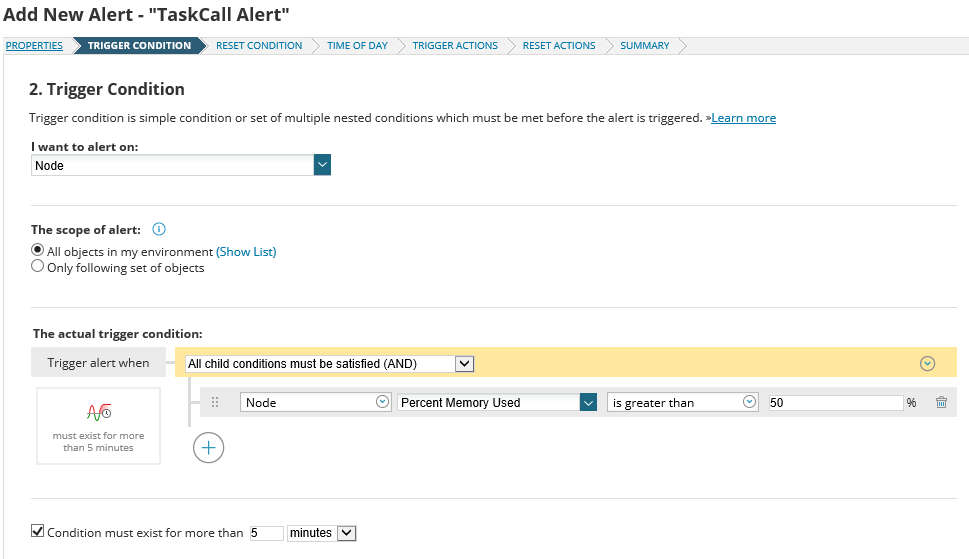
- Set the Trigger Conditions. This will determine when the alert is raised.
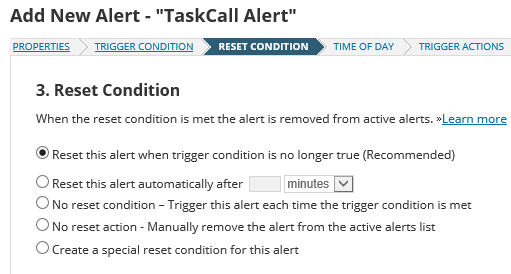
- Set the Reset Condition by selecting the radio button that states Reset this alert when trigger condition is no longer true.
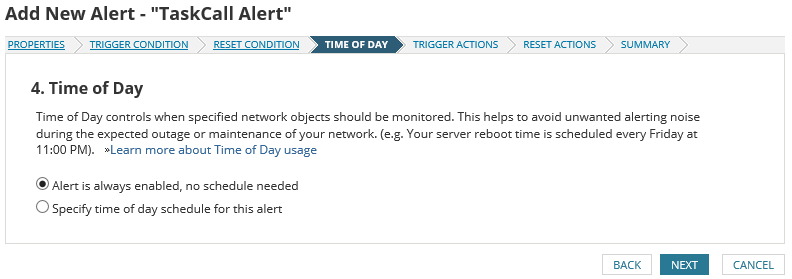
- Select the time period the alert will be valid in.
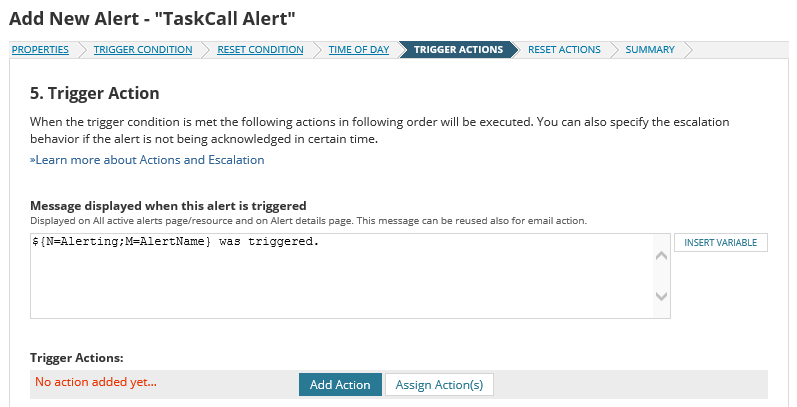
- Now we have to define how the alert will be triggered. Define the message body of the alert and click Add Action.
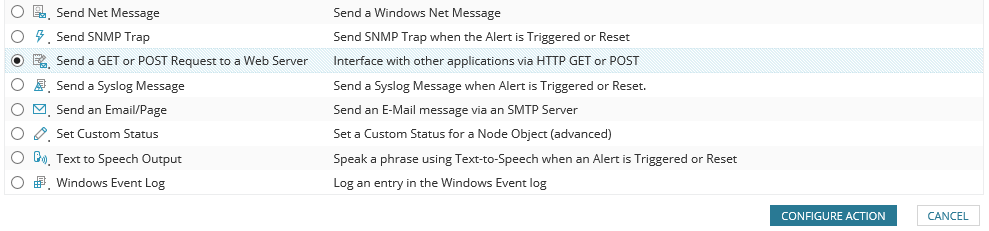
- From the options that are shown select Send a GET or POST Request to a Web Server. Then click Configure Action.
- Give the action a name. Paste the integration url you copied over from TaskCall. Select Use HTTP/S POST. Ensure that the ContentType is set as application/x-www-form-urlencoded.
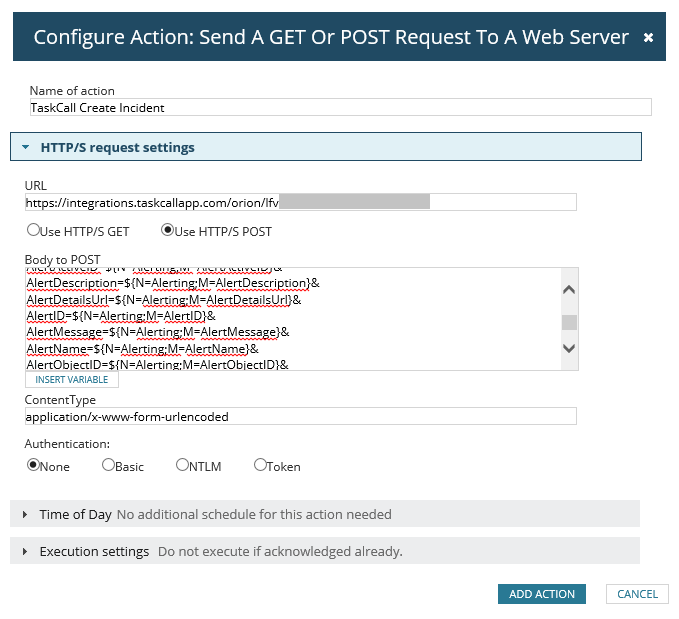
- Copy and paste the following in the Body to POST section.
AlertType=Trigger&DateTime=${N=Generic;M=DateTime;F=DateTime}&AcknowledgeLink=${N=Alerting;M=AcknowledgeLink}&AcknowledgeUrl=${N=Alerting;M=AcknowledgeUrl}&AlertActiveID=${N=Alerting;M=AlertActiveID}&AlertDescription=${N=Alerting;M=AlertDescription}&AlertDetailsUrl=${N=Alerting;M=AlertDetailsUrl}&AlertID=${N=Alerting;M=AlertID}&AlertMessage=${N=Alerting;M=AlertMessage}&AlertName=${N=Alerting;M=AlertName}&AlertObjectID=${N=Alerting;M=AlertObjectID}&Severity=${N=Alerting;M=Severity}&ObjectType=${N=Alerting;M=ObjectType}
- Click Add Action.
- Repeat this step in the Reset Actions section. Only this time copy and paste the following in the Body to POST field.
AlertType=Resolve&DateTime=${N=Generic;M=DateTime;F=DateTime}&AcknowledgeLink=${N=Alerting;M=AcknowledgeLink}&AcknowledgeUrl=${N=Alerting;M=AcknowledgeUrl}&AlertActiveID=${N=Alerting;M=AlertActiveID}&AlertDescription=${N=Alerting;M=AlertDescription}&AlertDetailsUrl=${N=Alerting;M=AlertDetailsUrl}&AlertID=${N=Alerting;M=AlertID}&AlertMessage=${N=Alerting;M=AlertMessage}&AlertName=${N=Alerting;M=AlertName}&AlertObjectID=${N=Alerting;M=AlertObjectID}&Severity=${N=Alerting;M=Severity}&ObjectType=${N=Alerting;M=ObjectType}
- Once you are done, check the summary and then click Submit .
- Now you are all ready to receive alerts raised by SolarWinds Orion on TaskCall.
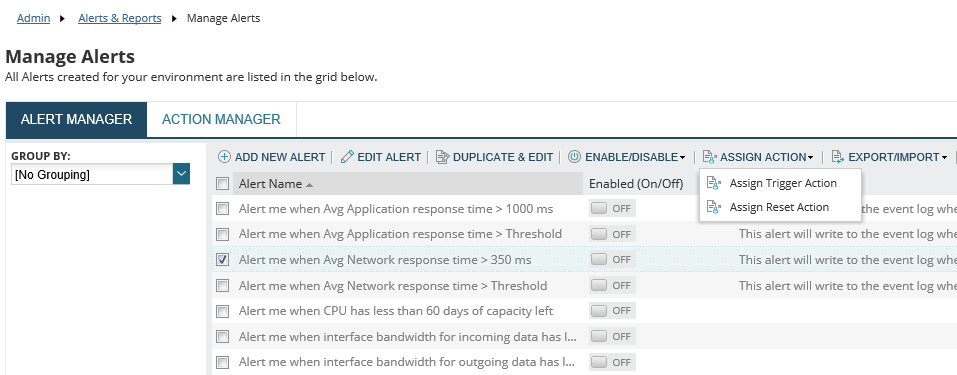
If you want you can also trigger alerts to TaskCall from built-in alerts in the Orion platform by going to the Alert Manager and assigning trigger and reset actions. You can refer to SolarWinds documentation to learn more.