TaskCall Critical Alerts
What Are Critical Alerts
Critical urgency incidents in TaskCall send a special push notification that is designed to ring through silent mode and Do Not Disturb, so you never miss an incident that needs your immediate attention. This is a one-time setup on each device. Once it is enabled, it applies to all future critical alerts automatically.
You can also customize how critical alert sounds and how it behaves on your device. You can customize the alerts including choosing different alert sound for crtitical alert and regular alert both so that you can differentiate among them. You have the option to choose whether the alert rings only once for the critical alert or loop through continuousy until it is acknowledged.
Critical Alert Settings in the Mobile App
Open the TaskCall mobile app menu and go to Settings. The options under the High Urgency Notifications section control critical alerts.
Critical Alert Sound - The sound that plays when a critical alert arrives. You can choose the Default sound or choose any one of the distinct, high-attention sounds: Air Horn, Alert Beep, Code Red or Nuclear Alarm. A preview of the sound plays as soon as you select it.
Loop Alert - Instead of playing the selected sound once when enabled, the critical alert sound keeps ringing endlessly, or until you respond to the alert. Use this if a single ring is easy for you to miss. You can stop the sound early by pressing any volume button or tapping the transparent overlay that appears on your screen.
Volume Override (Android only) - When it is enabled, a slider lets you set the volume level at which critical alert sounds are played on your device. The sound preview plays at the selected level as you adjust the slider.
Critical Alerts (iOS) / Override Do Not Disturb (Android) - this switch reflects the operating system permission that lets critical alerts ring through silent mode and Do Not Disturb. Because the permission is controlled by the operating system, turning the switch on or off takes you to the appropriate system screen when needed (on iOS the permission prompt may appear directly inside the app). When you come back to the app, the switch updates to show the permission's actual state.
Press Save to apply your changes. Your preferences are saved to your TaskCall account, so they are used for every critical alert sent to the device.
Remember to Save
Make sure that you save the changes by clicking the Save button inside the mobile app's settings page. Otherwise, the changes you made will not be saved.
Enable Critical Alerts on iOS
iOS requires you to explicitly allow Critical Alerts for the TaskCall mobile app. Without this permission, critical incident notifications will be silenced like any other notification when your phone is on silent or in Do Not Disturb mode.
The easiest way to enable it is from within the TaskCall mobile app:
- Open the TaskCall mobile app menu and go to Settings.
- Under High Urgency Notifications, turn on the Critical Alerts switch.
- When iOS shows the Critical Alerts permission prompt, tap Allow.
- Press the Save button on the settings page to save your changes.
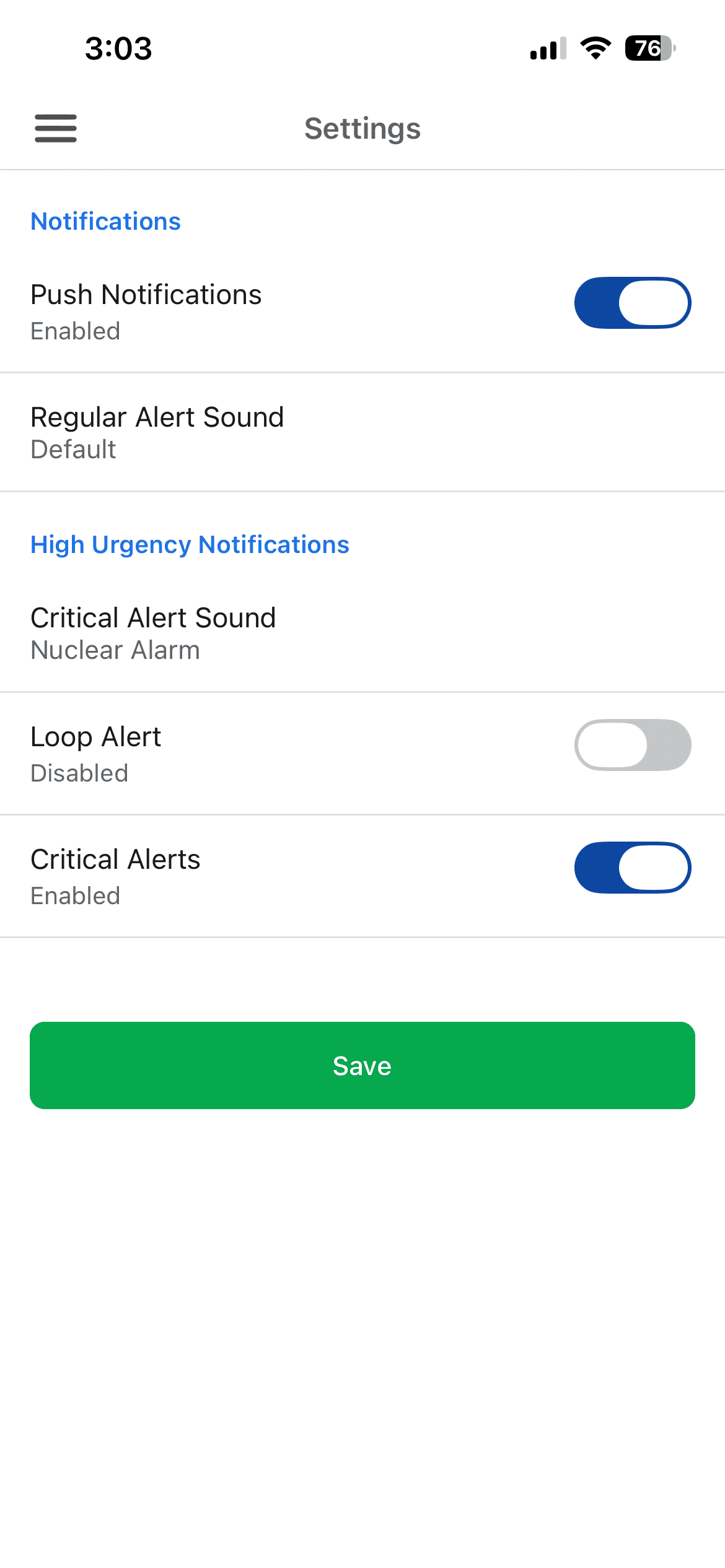
iOS shows the Critical Alerts permission prompt at most once. If the prompt does not appear, the app takes you to the system notification settings where you can enable it manually by opening the iPhone's Settings app, going to Apps > TaskCall > Notifications. Then enable the Critical Alerts.
Enable Critical Alerts on Android
Android surfaces critical incident notifications as their own notification types, one per critical alert sound, named Critical Alerts - <Sound Name> (for example, Critical Alerts - Default). Each has its own "Allow interruptions" toggle. This is what lets critical incident notifications bypass Do Not Disturb and ring at full volume. Android does not allow this to be granted from within the app, so it must be enabled from system settings. The quickest way to get there is from within the TaskCall mobile app:
- Open the TaskCall mobile app menu and go to Settings.
- Under High Urgency Notifications, turn on Override Do Not Disturb.
- The app takes you directly to the right notification type for your selected critical alert sound where you enable Allow interruptions.
- Return to the TaskCall mobile app and press the Save button on the settings page to save your changes.
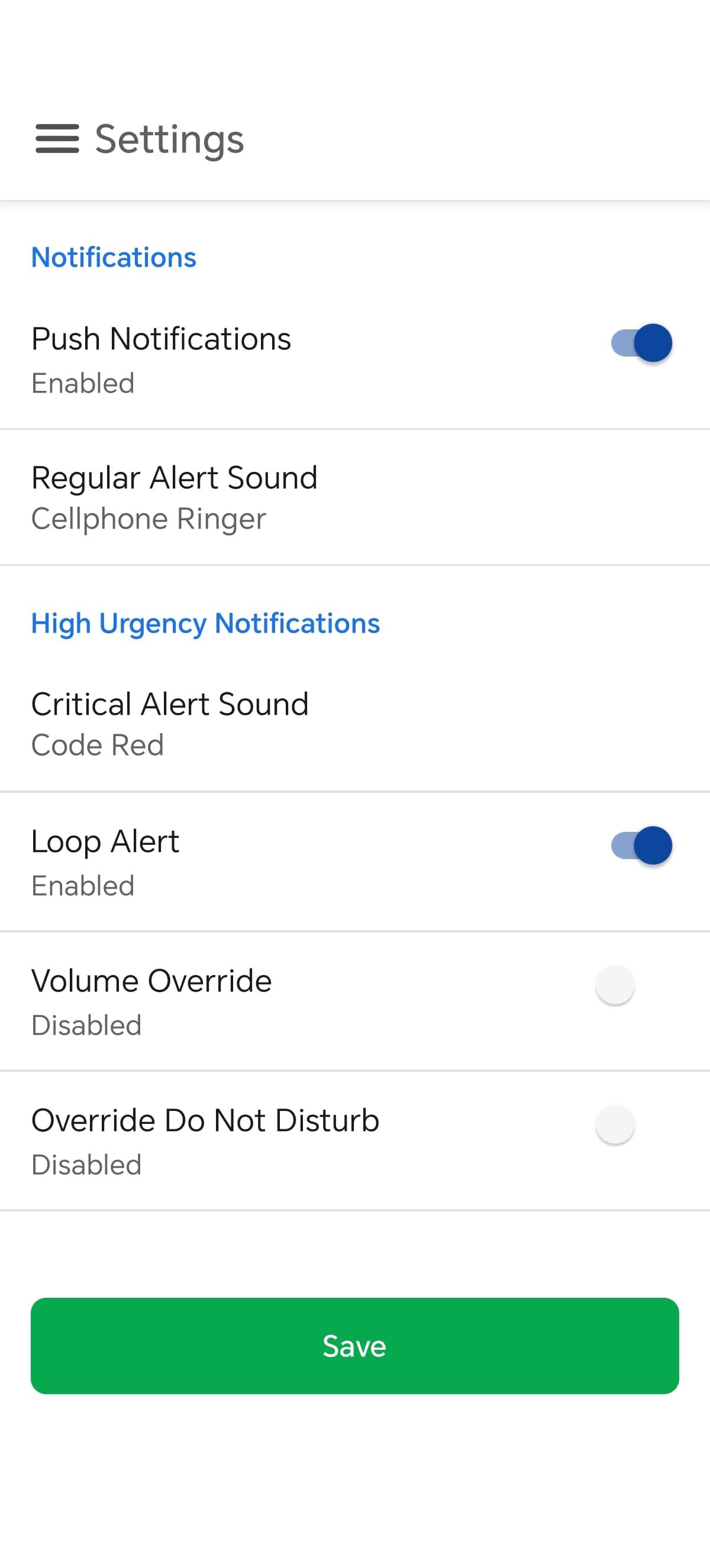
Permission is Granted Per Sound
Because the permission is granted per notification type, changing your critical alert sound in the app requires granting it again for the new sound. The app automatically takes you to the right system screen after you save the change.
To reach it manually instead (exact wording may vary slightly by device/Android version): Open the phone's Settings app. Go to Apps, then search for and open TaskCall. Tap Notifications. Make sure Allow notifications is enabled. Below it, find the Critical Alerts - <Sound Name> notification type that matches the critical alert sound selected in the app (for example, Critical Alerts - Default) and tap on it. Enable Allow interruptions.