
Jira Service Management Integration Guide
Jira Service Management (JSM) is Atlassian's IT service management platform for tracking and triaging tickets. TaskCall doesn't have a dedicated built-in integration for JSM, but it can still be connected using TaskCall's Custom Integrations feature paired with JSM's own automation flows.
Once set up, a new Jira ticket automatically creates an incident in TaskCall, and any updates to that ticket's status, priority or other key fields update the same incident instead of creating a duplicate. Which tickets should raise incidents, and how their fields map over, is entirely up to you. See the customization notes in Parts 2 and 3, and the FAQ at the end.
Pointers
- There's no dedicated built-in JSM integration in TaskCall the way there is for Jira Cloud and Jira Server. This one is built entirely on TaskCall's Custom Integration feature plus JSM's own automation flows.
- It has two parts: a Custom Integration in TaskCall, and two automation flows in Jira Service Management that send data to it.
- By default, every new ticket creates an incident. Narrowing that down to a subset (by priority, issue type, label, team, or any other field) is optional, and done with a Condition step in the Jira flows.
- Two JSM flows are needed because Jira treats "ticket created" and "field changed" as separate trigger types, even though both flows send to the same TaskCall URL with the same payload shape.
- Tickets are matched to incidents by the Jira issue key. That's what lets an update to an already-synced ticket update the existing incident instead of creating a duplicate.
- No separate API token or authentication is needed. The TaskCall Custom Integration URL is the credential itself, so treat it like one.
- You'll need admin access to both the Jira space (Space settings > Automation) and the TaskCall service you're creating incidents against.
Pricing Plans
This integration relies on TaskCall's Custom Integrations feature, which is only available on the Business and Digital Operations pricing plans.
Part 1: Create the Custom Integration in TaskCall
- Go to Configurations > Services and select the service new Jira tickets should raise incidents against.
- Open the Integrations tab on that service, then click New Integration.
- Name it (e.g. jsm-test or Jira Service Management), select Custom Integration, and click Save.
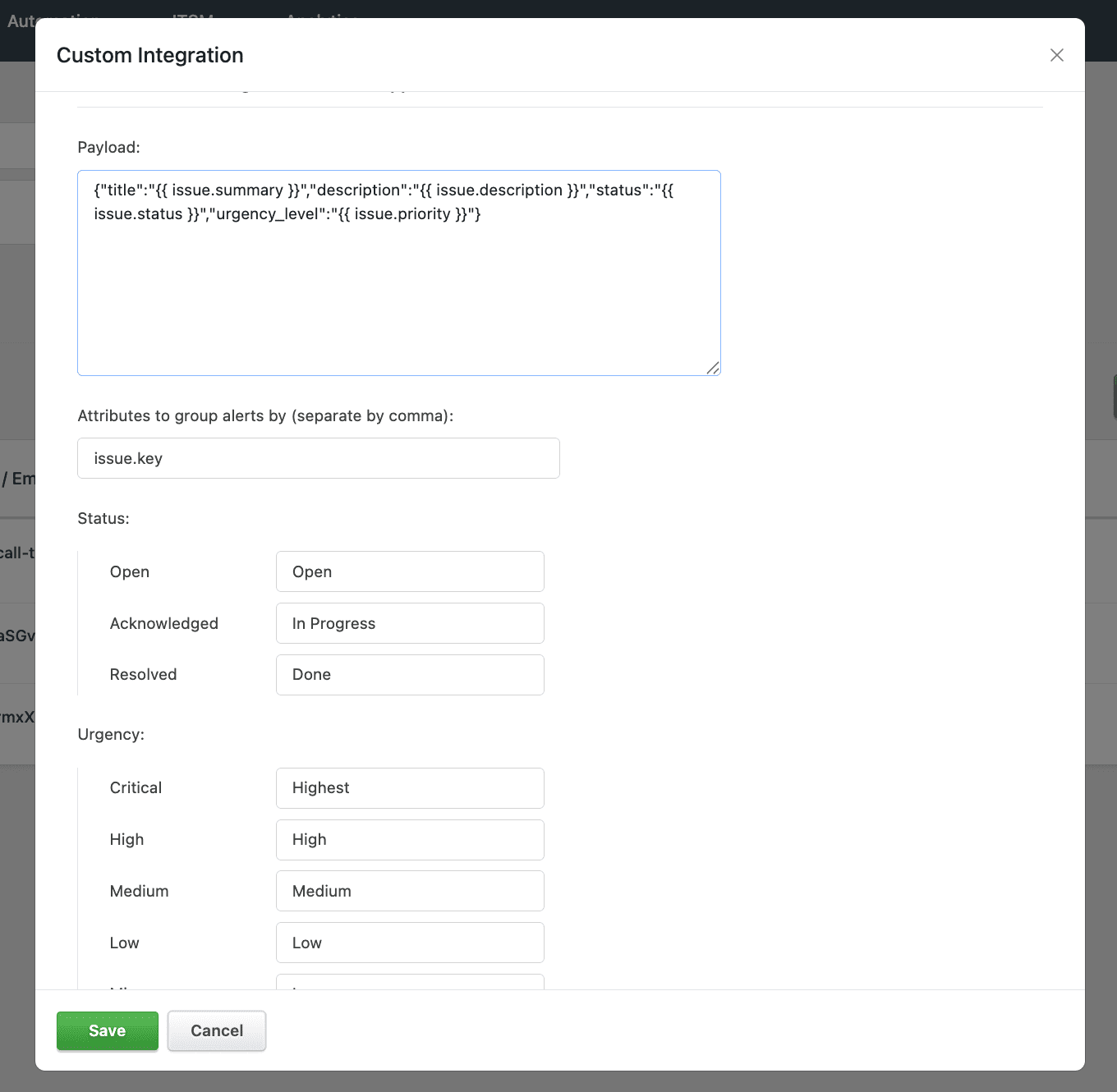
- In the configuration modal, fill in the Payload field. This tells TaskCall how to read the JSON Jira will send:
{
"title": "{{ issue.summary }}",
"description": "{{ issue.description }}",
"status": "{{ issue.status }}",
"urgency_level": "{{ issue.priority }}"
}
- Set Attributes to group alerts by to:
issue.key
This is what makes an update to an existing ticket update the same incident, instead of creating a duplicate. - Fill in the Status mapping, matching the Jira workflow's actual status names:
TaskCall Status Jira Status Value Open Open / To Do Acknowledged In Progress Resolved Done
- Fill in the Urgency mapping, matching the Jira priority names:
TaskCall Urgency Jira Priority Value Critical Highest High High Medium Medium Low Low Minor Low
- (Optional, testing only) Enable Include incoming payload in description to see the full raw JSON Jira sent, useful for confirming field paths. Turn this off once verified working.
- Click Save. TaskCall generates a unique URL endpoint. Copy this, it's needed in Parts 2 and 3.
Match the Jira priority scheme exactly
The table above uses Jira's default priority names. If a given Jira instance instead uses a different scheme (e.g. P0-P4), replace the right-hand values with the exact labels used there. The match is case-sensitive and exact.
No separate authentication needed
TaskCall's Custom Integration URL is the credential itself, so treat it as a secret.
Part 2: Create the "Incident Created" flow in Jira
- In Jira, go to the relevant space (or project) > Space settings > Automation.
- Click the Flows tab, then Create flow.
- Create a rule from scratch (skip AI/natural-language rule builders, since precise field mapping is needed).
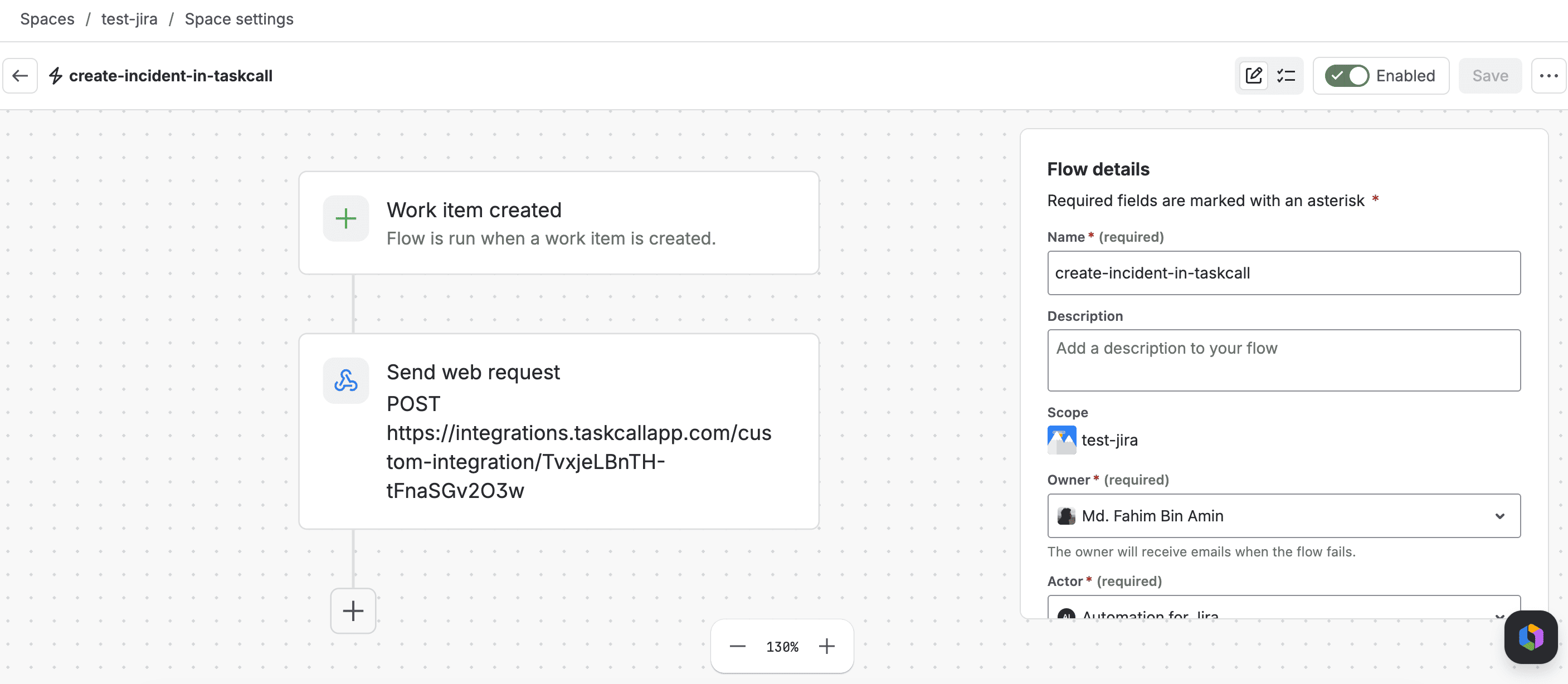
- Trigger: select Work item created (Jira's current name for what used to be called "Issue created").
- (Optional) Add a Condition if incidents should only be created for a subset of tickets. Choose Work item fields condition and compare whichever field is relevant (Issue Type, Priority, Labels, etc.) against the value(s) that should qualify. Skip this and every new ticket creates an incident.
Customization example
For example, to only create incidents for the highest-severity tickets, add a condition on Priority, comparison Equals (or is one of), value P0. Tickets at any other priority then never reach TaskCall. The same pattern works for issue type, team, label, or any other field.
- Add an action: Send web request.
- Fill in the web request fields:
Field Value Web request URL The TaskCall Custom Integration URL from Part 1 HTTP method POST Headers Content-Type: application/json Web request body Custom data (see below)
- In the Custom data box, paste the following. This defines exactly what Jira sends to TaskCall:
{
"issue": {
"key": "{{issue.key}}",
"summary": "{{issue.summary}}",
"description": "{{issue.description}}",
"status": "{{issue.status.name}}",
"priority": "{{issue.priority.name}}",
"reporter": "{{issue.reporter.displayName}}"
}
}
- Click Validate your web request configuration to send a live test and confirm a successful response.
- Name the flow (e.g. create-incident-in-taskcall) and click Save and enable.
Part 3: Create the "Incident Updated" flow in Jira
This second flow keeps the TaskCall incident in sync when the underlying Jira ticket changes.
- Back in Automation > Flows, click Create flow again.
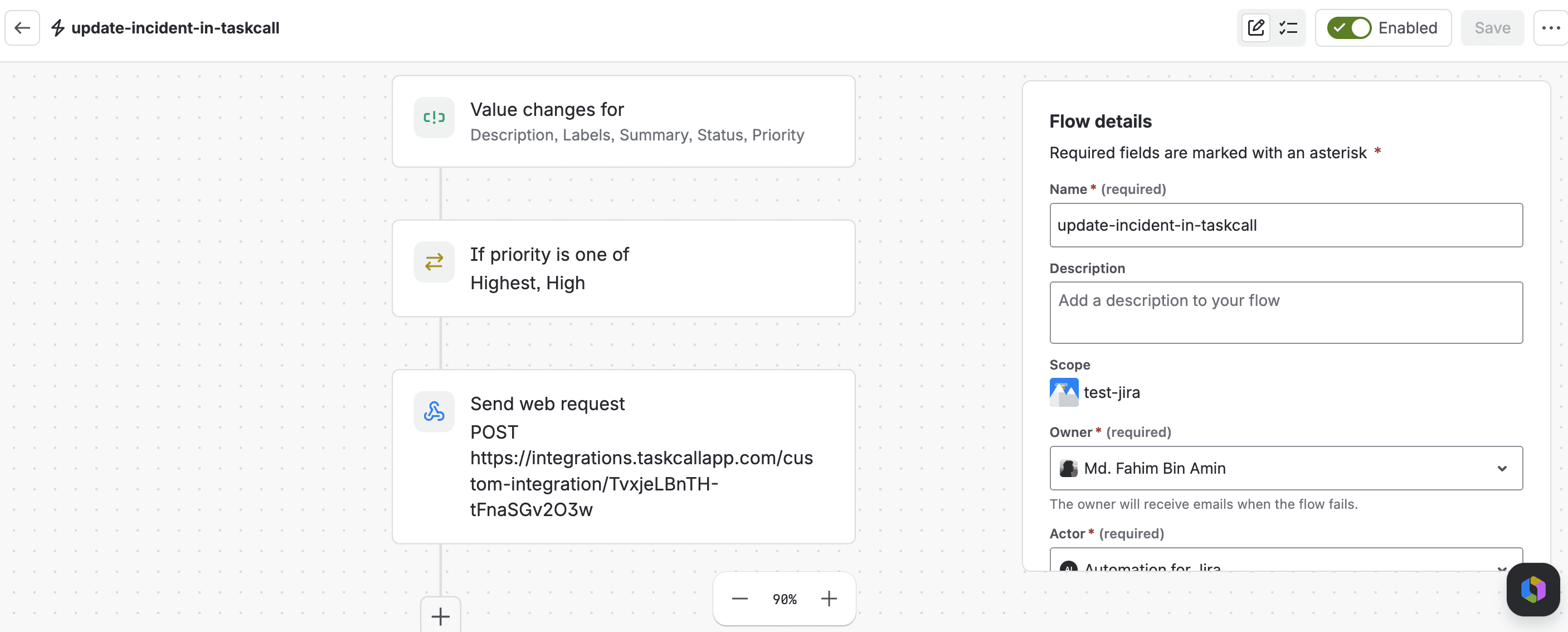
- Trigger: select Value changes for (fires when specific fields change).
- Under Fields to monitor for changes, select the fields to sync, typically Status and Priority at minimum. Summary and Description can be included too if title/description changes should be reflected.
- Leave Change type as Any changes to the field value, and For as All work item operations, unless narrowing further is needed.
- (Optional) Add a Condition here matching whatever condition was used in Part 2, so the update flow stays consistent with the create flow. The same tickets that qualify for incident creation should be the ones whose changes get synced.
Customization example (continuing from above)
If the create flow only fires for P0 tickets, add the same condition here: Priority Equals P0. A change to a non-P0 ticket then never pushes anything to TaskCall. If a ticket is later raised to P0, this condition passes and, since no matching incident exists yet for that ticket key, TaskCall creates a new incident at that point rather than updating one.
- Add the same Send web request action as in Part 2: same URL, same POST method, same Content-Type header, same Custom data JSON structure.
- Name the flow (e.g. update-incident-in-taskcall) and click Save and enable.
Why two flows?
Jira treats "created" and "field changed" as separate trigger types, so two flows are needed even though they send to the same URL with the same payload shape.
Part 4: Test It
- Create a new test ticket in Jira (matching whatever condition, if any, was configured in Part 2).
- Check Jira's Automation > Audit log for both flows and confirm the request returned a successful (2xx) status, not an error.
- Check TaskCall. A new incident should appear on the mapped service with the correct title, status and urgency.
- Edit the same ticket, changing its priority or status.
- Confirm the same incident in TaskCall updates, rather than a new one being created (it will be marked GROUPED in the incident's activity log).
Troubleshooting
Web request fails with an error
- Confirm the TaskCall URL was copied in full and pasted without truncation.
- Confirm the payload in TaskCall's Payload field is valid JSON (matching braces and quotes).
- Temporarily simplify the Jira Custom data to just {"title": "Test"} to isolate whether the issue is in the JSON structure or the endpoint itself.
Fields come through empty
- Enable Include incoming payload in description in TaskCall temporarily and check the raw JSON received, to confirm the field paths in the Payload mapping match what's actually being sent.
- Jira smart values in the Custom data box use the form {{issue.fieldname}} or {{issue.fieldname.name}} for fields with sub-values (like status and priority). The TaskCall Payload mapping must reference the exact same nested path used in the Custom data JSON.
Updates don't change the incident's urgency
- Confirm Attributes to group alerts by is set to issue.key in TaskCall. Without this, each update may create a separate incident instead of updating the existing one.
- If grouping is correct but urgency still doesn't change on an already-open incident, this may be expected behaviour for grouped/merged alerts on TaskCall's side rather than a configuration issue. Confirm with TaskCall support if this persists.
A condition-scoped ticket isn't creating an incident
- Confirm the value used in the Work item fields condition matches the exact label shown in Jira (case-sensitive, exact match, e.g. P0, not "P0 - Critical" or "Priority 0").
- Check the Audit log entry for the create flow. If the flow shows as skipped rather than failed, the condition evaluated to false, meaning Jira didn't consider the ticket a match for the configured value.
- If the ticket didn't originally match the condition and was only later changed to match, the create flow won't have fired for it. Confirm the update flow (Part 3) has a matching condition, since that's what will create the incident once the field changes.
A ticket outside the configured scope is still creating an incident
- Confirm the Work item fields condition was actually added to the flow, and sits between the trigger and the Send web request action, not after it.
- Confirm the condition's comparison is Equals (or is one of, listing only the intended value(s)), not something broader such as is not empty.
FAQ
Can incidents be limited to only certain tickets (e.g. a specific priority, issue type, or team)?
Yes. This is done with a Condition step in the Jira automation flows, placed between the trigger and the Send web request action. See the customization examples in Part 2 (create flow) and Part 3 (update flow); the same pattern (Work item fields condition, comparing any field against any value) works for priority, issue type, labels, or any other field on the ticket. A condition can also be added later without rebuilding the flow; it can be inserted into an existing flow at any time.
Can different Jira fields be mapped to the incident (e.g. a custom field instead of Description)?
Yes. The Custom data JSON in the Send web request action (Part 2 and Part 3) controls exactly what is sent to TaskCall, and the Payload field in TaskCall's Custom Integration (Part 1) controls how that data is read. Any Jira smart value can be added to the Custom data JSON ( {{issue.customfield_XXXXX}} for a custom field, for example) and referenced from the TaskCall Payload the same way as summary, status, or priority are today.
What happens if a ticket doesn't match the condition when created, but is later changed to match it?
The update flow (Part 3) creates the incident at that point. Since TaskCall groups incidents by issue.key and no incident exists yet for that ticket, the first request that matches the condition creates a new incident rather than updating one.
Does this require an API key or authentication?
No. The TaskCall Custom Integration URL generated in Part 1 is itself the credential. Anyone with the URL can send data to it, so it should be handled like a secret, not shared outside the flows that use it.
Can more than two flows be added (e.g. to close the incident when the ticket is resolved)?
Yes. Additional flows can be built the same way: a trigger, an optional condition, and a Send web request action pointed at the same TaskCall URL. For example, a flow triggered on Value changes for > Status, conditioned on the new status being Done, could be used to mark the incident resolved.