HaloITSM Integration Guide
HaloITSM is a comprehensive, cloud-based IT service management platform designed to streamline and modernize service delivery for organizations of all sizes. It enables IT teams to manage requests, incidents, problems and changes through intuitive workflows and powerful automation. TaskCall's HaloITSM integration leverages the strengths of both systems to synchronize tickets and incidents bi-directionally, ensuring critical issues are surfaced quickly and handled with maximum efficiency. This unified approach helps IT teams stay responsive, reduce resolution times, and maintain smooth, uninterrupted service operations.
Pricing Plans
TaskCall's HaloITSM integration is only available on the Business and Digital Operations pricing plans.
Pointers
- Incidents can be created in TaskCall from HaloITSM through webhook.
- Tickets can be created in HaloITSM from TaskCall manually/automatically.
- Tickets and incidents will sync up automatically.
- Multiple services can be integrated with the same HaloITSM account. It gives you the flexibility to dictate how tickets will be created in HaloITSM from TaskCall.
- The integration can only be set up by a user with admin rights.
- In HaloITSM an application has to be created to enable the integration.
In HaloITSM - Get the necessary credentials
An access token will be needed to authorize requests from TaskCall to create and update tickets in HaloITSM. To do that we need client ID and client secret. To generate a client id and secret, follow these steps:
- Log into your HaloITSM account.
- Go to Configuration > Integrations > HaloITSM API.
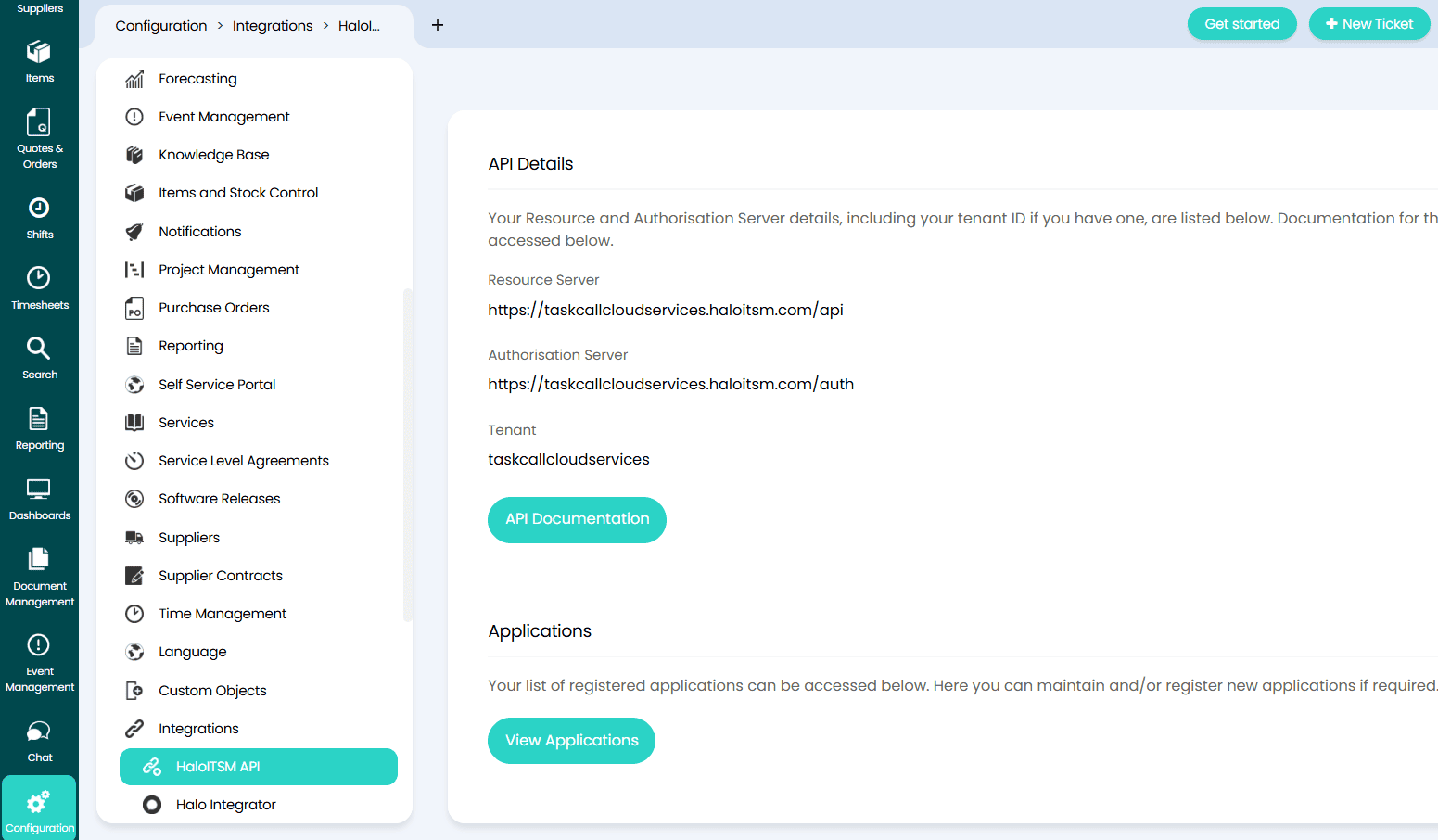
- Click on View Application. In the next page, click on the New button on the top right corner.
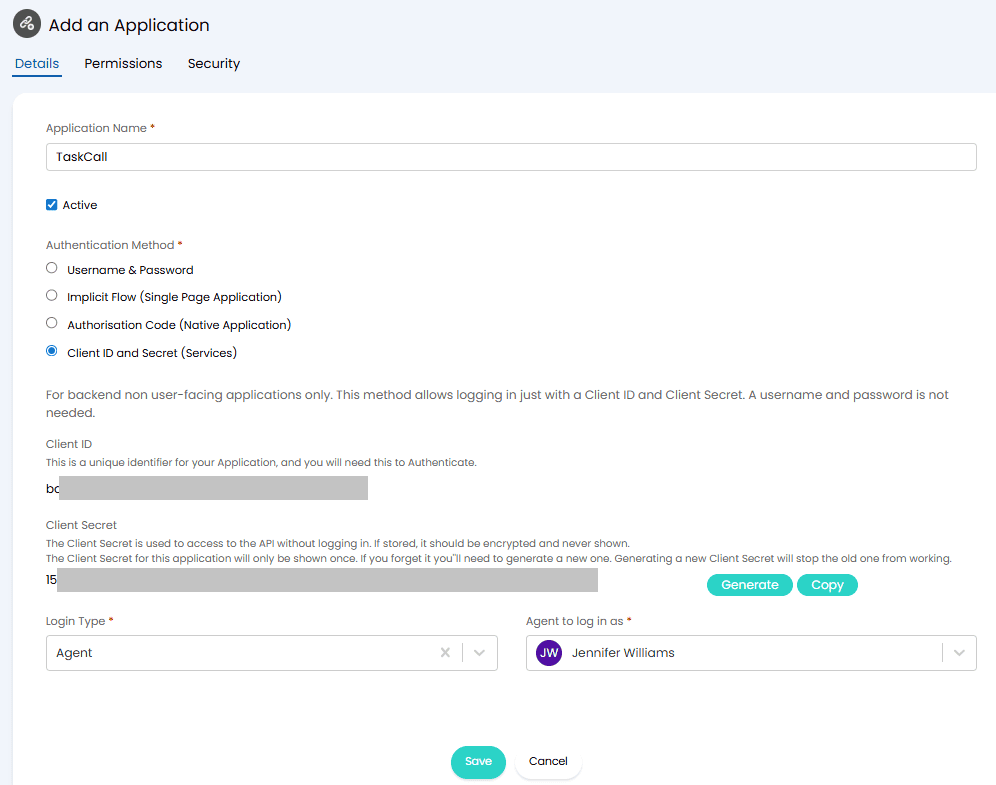
- Give the application a name (e.g. TaskCall). Select Client Id and Secret (Services) as the authentication method. Set the login type as Agent and select an agent to login as for this application. When TaskCall will create a ticket in HaloITSM, it will be logged as having been created by this agent. Hence, you may want to create a separate agent for this purpose.
Copy the Client ID and Client Secret that have already been generated for the application. They will be needed to set up the integration in TaskCall.
- Move over to the Permissions tab. Give the application the read:tickets and edit:tickets permissions only.
- Click Save to create the application.
In TaskCall - Configure Integration
In TaskCall you will define how HaloITSM tickets will be created and synced up with TaskCall incidents.
- Go to Configurations > Services. Select the service you want to integrate with.
- Once you are on the Service details page, go to the Integrations tab. Click on New Integration.
- Give the integration a name.
- From the integration types, select the top radio button indicating that you are trying to use a built-in integration.
- From the list of built-in integrations, select HaloITSM.
- Click Save.
- You will then be prompted to choose or provide your HaloITSM API credentials. If you have set up a HaloITSM integration before, you can choose to use its API credentials without having to provide them again.
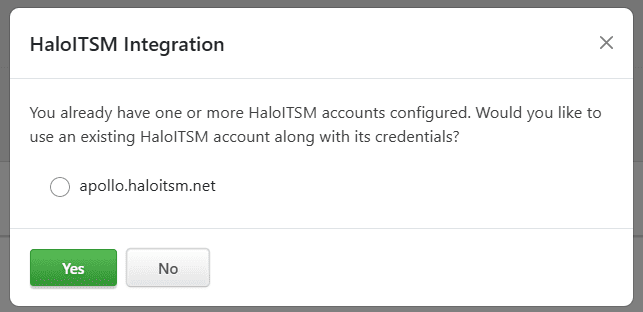
- If you choose to use existing credentials, you will be taken to the final step to configure the integration.
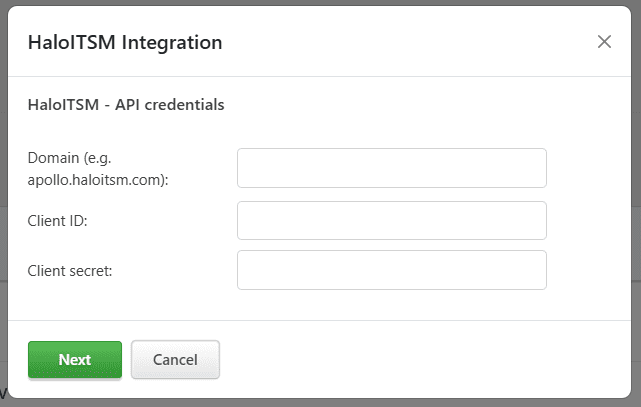
- If you do not have an existing HaloITSM integration or chose not to use the credentials from an existing integration, then you will be prompted to enter your HaloITSM API credentials.
- Here you must provide your HaloITSM API domain (e.g. apollo.haloitsm.com), client ID and client secret (as generated by the HaloITSM application you created earlier). These credentials will not be displayed to you again or be accessible by you. They are stored securely by TaskCall and are only used for making API calls to sync up tickets and incidents.
- Click Next when you are done to be taken to the final step of the integration.
- Configure how tickets will be created in HaloITSM from TaskCall:
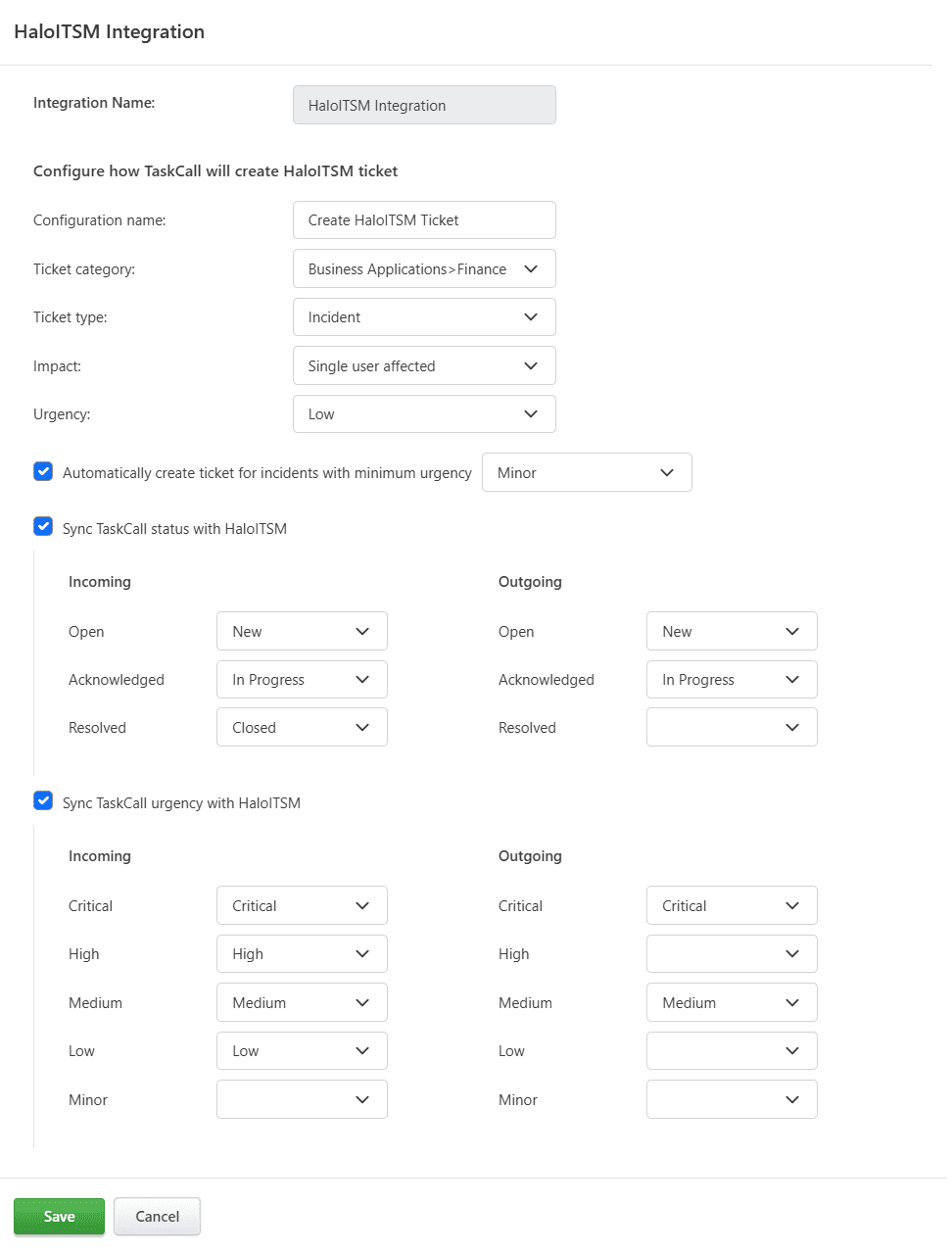
- Give a configuration name (e.g. Create HaloITSM Ticket). This name will be given to the custom button that will be displayed for you on the Incident details page if you choose to create the tickets manually. This button will be displayed in the dropdown More in the incident actions button panel on the page.
- Select the category, type, impact and urgency of the ticket to be created in HaloITSM.
- Select whether you want to create HaloITSM tickets manually or automatically. If you choose to create it manually, then you will be able to do so from the custom button that will be displayed for you on the Incident details page as mentioned above. The button will only be displayed for incidents that are triggered on the integrated service.
If you choose to create tickets automatically, then whenever an incident occurs on this service, a HaloITSM ticket will be created if the urgency of the incident is at least equivalent to the minimum urgency set in the configuration. - Choose whether you would like TaskCall statuses and urgency levels to be synced up with HaloITSM. If you decide to sync, you will also have to select how TaskCall statuses and urgency levels will be mapped to HaloITSM statuses and priorities respectively.
The way incoming alerts from HaloITSM sync up can be configured differently from the way outgoing alerts are handled from TaskCall. If you do not want to sync up a certain action, leave its respective value empty.
- Click Save when you are done.
At this stage you can start creating and syncing up tickets in HaloITSM from TaskCall incidents. If you would like to create incidents in TaskCall from HaloITSM, then please move on to the next section.
Set-up Automatic Triggers from HaloITSM to TaskCall
HaloITSM webhooks can be used to automatically trigger incidents and update them in TaskCall. The integration URL that was generated by TaskCall during the integration setup will be the webhook endpoint.
- In your TaskCall account, go to Services. Select the service you configured your HaloITSM integration on. Go to the Integrations tab and find your HaloITSM integration. Copy the Integration URL that has been issued for it.
- Then in your HaloITSM account, go to Configuration > Integrations > Webhooks. Click the New button on the top right corner.
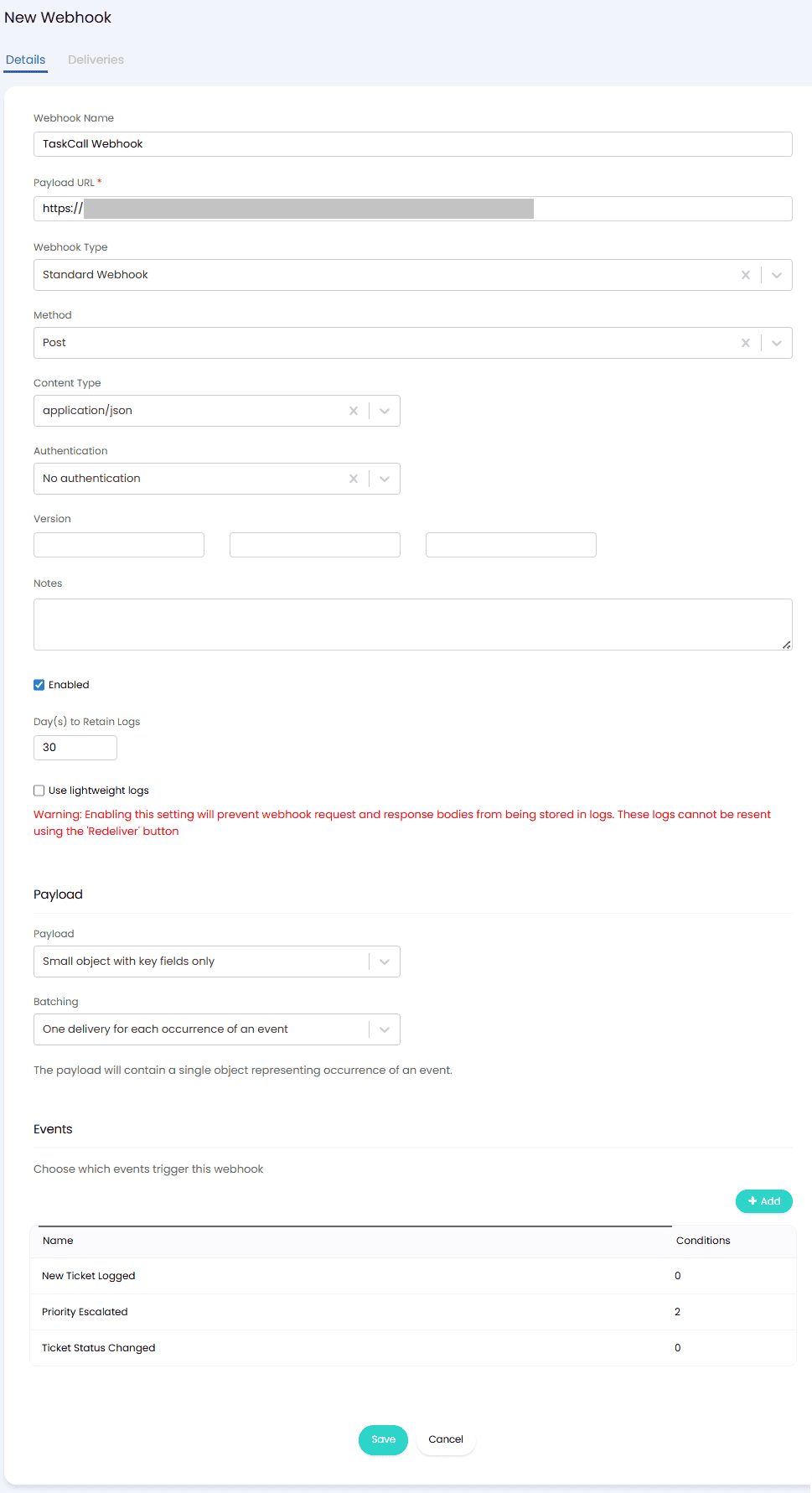
- Configure the webhook:
- Webhook Name: Give the webhook a name (e.g. TaskCall Webhook).
- Payload URL: Paste the Integration URL you copied over from TaskCall.
- Webhook Type: Standard Webhook
- Method: Post
- Content Type: application/json
- Authentication: No authentication
- Payload: Select Small object with key fields only and batch it as One delivery for each occurrence of an event.
- Events: Select these events - New Ticket Logged, Priority Escalated and Ticket Status Changed.
- Click Save. That's it!
Your integration is now ready to bi-directionally sync up HaloITSM tickets and TaskCall incidents.
How to manually create HaloITSM ticket?
When you configure the integration to create HaloITSM tickets manually, TaskCall displays a custom button for you on the incident details page of incidents that occur on the integrated service. The button is shown in the dropdown options of the More button towards the top of the page. By clicking this button, you will be able to create a ticket in HaloITSM.

Where to find the synced tickets?
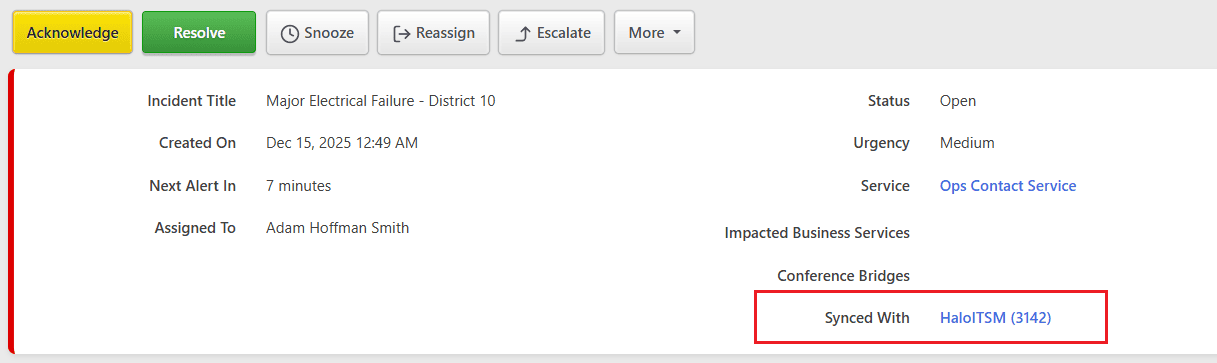
Once a TaskCall incident is synced with a HaloITSM ticket, the ticket ID is displayed on the upper panel on the incident details page next to the Synced with label.