Manage People and Roles
People refer to external stakeholders of an organization. They should not be confused with users. While users are active members of an organization's TaskCall account, people refer to those who do not perform on-call duties and only interact as outsiders. They could be clients, partners, top management or belong to a unit that may have the need to report incidents without being involved in the resolution process. People can be put together in Groups for better representation.
Storing external People's information allows incidents to be contextualized more. Instead of showing a phone number or email address alone, incidents can be enriched to show more easily identifiable information like the name of the person creating the incident. This will make the details shown to the responder more meaningful.
Pricing Plans
People is only available in the Digital Operations pricing plan. For other paid plans, it can be added through the Advanced Live Call Routing Add-on.
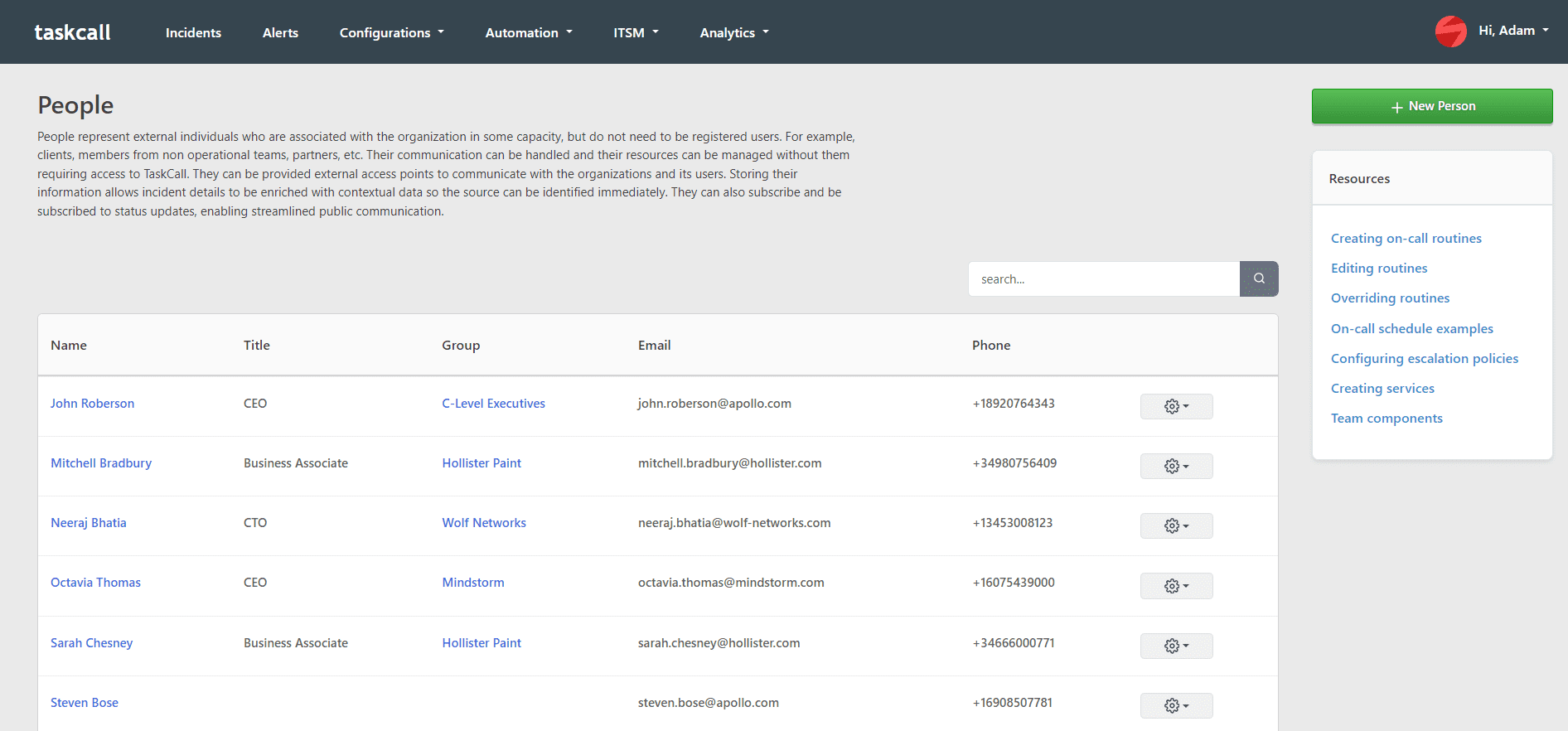
Add People
- Go to ITSM > People. Click the New Person button on the top right corner.
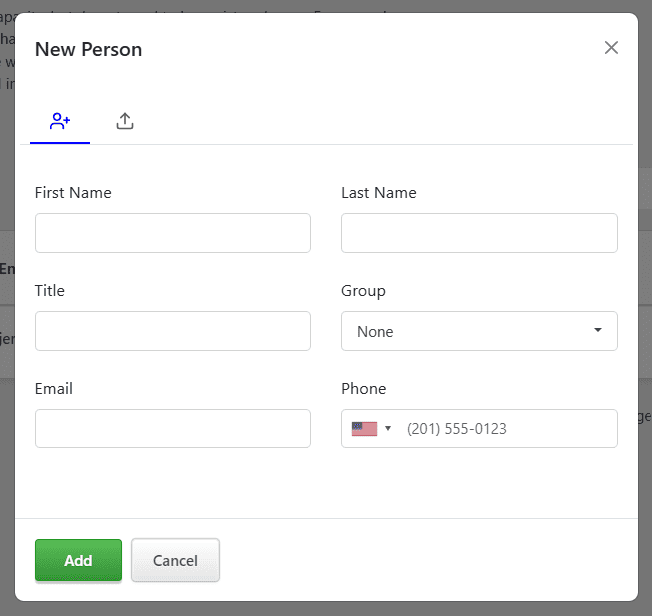
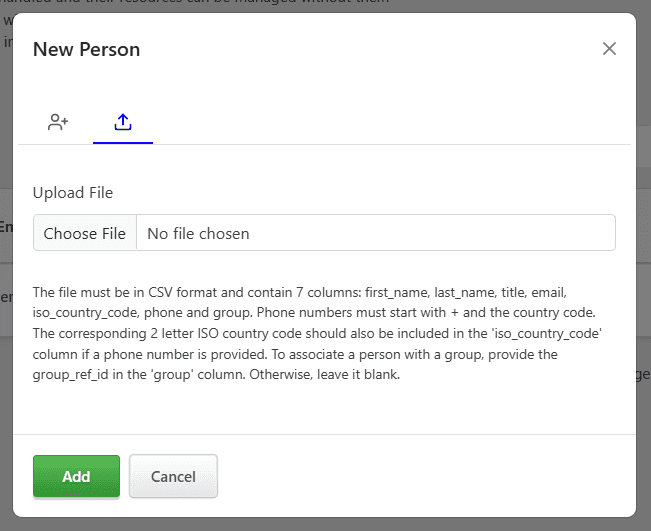
- A modal will open up. There are two options - 1) Add one person 2) Add multiple people with a CSV file.
- Add one person: Enter the details of the person. You can assign them to a Group from here directly or add them to the group later on. Click Add when you are done.
- Add multiple people with a CSV file: Click the upload icon to switch to the file upload option and select a valid CSV file from your computer. The file must be in CSV format and contain 7 columns: first_name, last_name, title, email, iso_country_code, phone and group. Phone numbers must start with + and the country code. The corresponding 2 letter ISO country code should also be included in the iso_country_code column if a phone number is provided. To associate a person with a group, provide the group_ref_id in the group column. Otherwise, leave it blank.
- Add one person: Enter the details of the person. You can assign them to a Group from here directly or add them to the group later on. Click Add when you are done.
Edit People
- Go to ITSM > People. From the list of people, find the person whose details you would like to edit. Click the options button on the right end of the row and select Edit.
- A modal will open up. Make sure that you are on the manual entry tab in the modal. Make the desired changes. (If the person belongs to a group that is owned by a team, then you must have the necessary permissions to make changes to that team. If you want to switch the person to another group that is owned by another team, you must also have edit permissions for that team.)
- Click Save.
Delete People
- Go to ITSM > People. From the list of people, find the person whose details you would like to edit. Click the options button on the right end of the row and select Delete.
- Confirm that you would indeed like to delete this person.