Interactive Voice Response
Interactive voice response (IVR) allows automated prompts to be made to the caller for information and route the call based on responses provided by the caller. The call flow can be designed to ask callers questions or present options. The caller's response then determines how the call should be handled - prompt for further information, forward to on-call responders, send to voicemail or more. TaskCall's provides a powerful suite of capabilities for IVR options that allow clients to build their own customized call flow.
The system can also be configured to dynamically handle the call flow without having to define specific response comparisons. It uses existing information about services and people to decide what the caller is calling for and which team would be best for handling their request.
Each interactive voice response block consists of a prompt, acceptable responses and actions.
Prompt
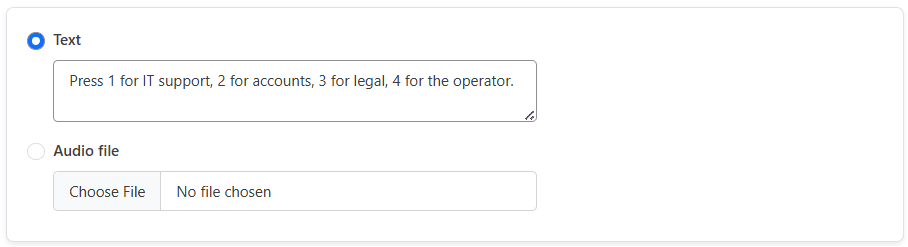
A prompt is the message that is played to the caller with the intent of gathering a response. The prompt can be a text (which is coverted to speech when played) or an audio message. The prompt should clearly explain to the user what they need to do next. If the user needs to select from a choice of options, then the prompt should mention that (e.g. Press 1 for technical support, press 2 for accounts). If the user needs to enter a certain information (e.g. account number) then the prompt should mention that.
Response
The response section of an IVR block allows you to define points of comparison for the user's input. The response can be compared against a constant value, a regular expression or a data category. TaskCall will evaluates the user's response against the acceptable user responses you define and determine the next step of the call flow.
The following three types of comparisons are allowed:
Fixed value: A fixed value will be useful as a point of comparison when the caller is presented with a set of options to choose from. If the caller is asked to select the service they want by pressing the corresponding digit from the dialpad, then the responses should be those options like 1, 2, 3 and so on.

Regular expression: A regular expression will allow a larger set of caller input to be assocated with a single set of actions. If the caller's input matches the regular expression then the actions associated with that option will be selected as the next step of the call flow.

Dynamic matching: Caller input can be compared with services to dynamically filter down the service the call should be forwarded to. This is a powerful utility that removes the need to manage numerous possible flows and let the system decide more dynamically what should be done. At the moment, the following fields are supported:
- {{ services }} - compares against service name and tags
- {{ services.name }} - compares against service name alone
- {{ services.tags }} - compares against all tags in a service
- {{ services.tags.[type] }} - compares against only the tags in a service that match the type. For example, if you define the data category as {{ services.tags.region }} then the caller's input will be matched against tags that are defined as "region" like this - region: 12, region: 15
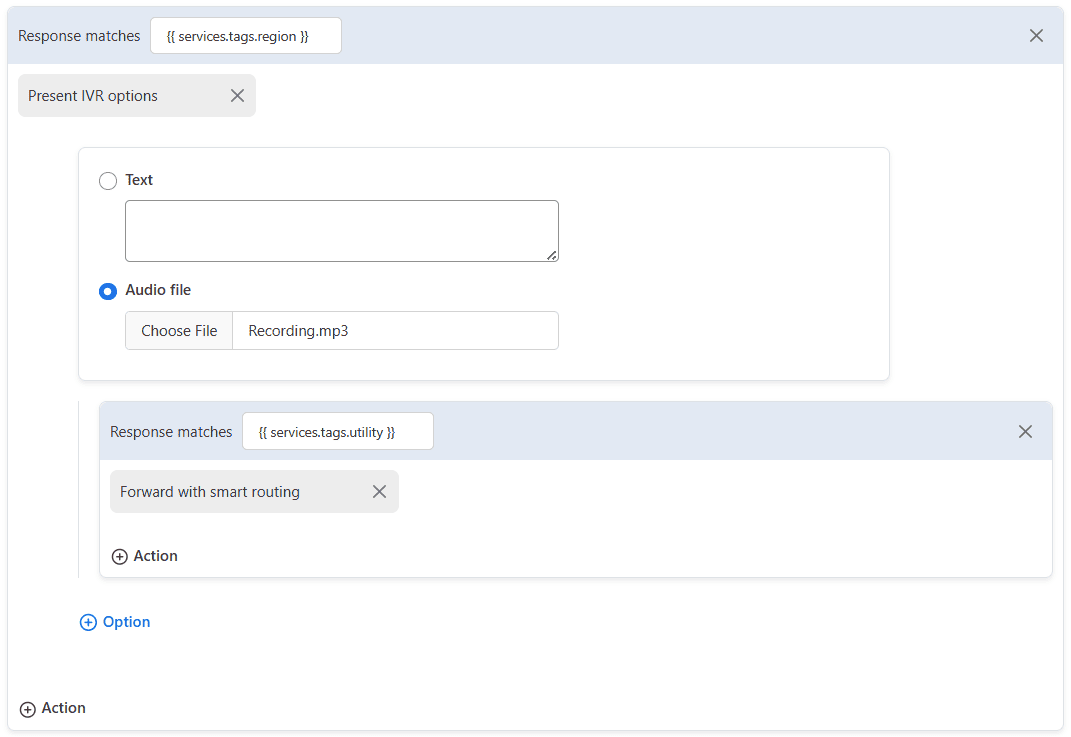
Multiple comparisons can be added in the same response by separating the values by comma. The values are compared using the "OR" logic. If the user's input matches at least one of the defined comparison values, then that IVR option will be selected.
Actions
Actions define what should happen after the caller's input matches one of the options. Multiple actions can be executed together. The following actions can be taken:
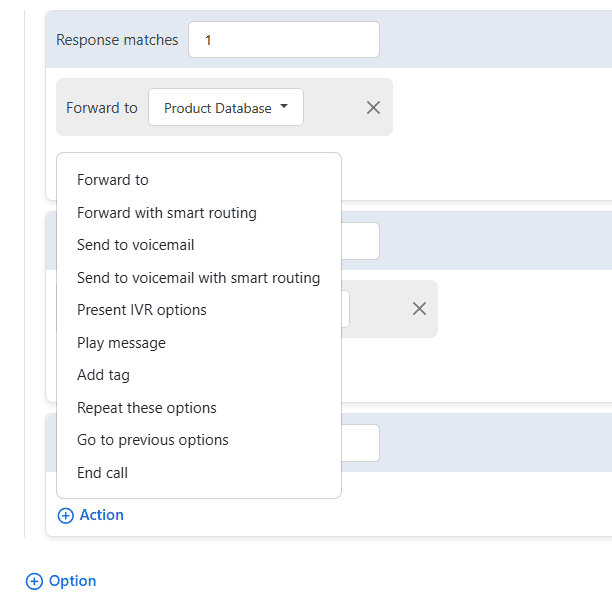
- Forward to: Forward the call to a specific service. Call will be forwarded to the correct on-call responders as per the escalation policy associated with the service.
- Forward with smart routing: This should only be used when comparison is made against a data category. The call will be forwarded to the service that matches the response(s) provided by the caller.
- Send to voicemail: The caller will be directly sent to voicemail and the call will be assigned to the selected service.
- Send to voicemail with smart routing: The caller will be sent to voicemail and the call will be assigned to the dynamically determined service.
- Present IVR options: Present another set of IVR options. This will allow you to created nested IVR options and your own custom call flow.
- Play message: Play a message. This just plays the defined message. It does not gather a response from the user. To gather a response from the user, please use the "Present IVR options" action.
- Add tag: Add a tag to the incident that is created for the incoming call. Multiple tags can be added using a comma separated list.
- Repeat: Repeat this same IVR step again. The message in the current IVR block will be played again and the caller will be prompted for a response.
- Go back: Go back to the previous IVR step. This will allow the caller to go back to the previous step in the call flow.
- End call: This will end the call. The call will not proceed further.
Only the Forward to option is available on the Starter and Business plans. All the other options are available only on the Digital Operations plan.
Actions are executed according to the order they are set in. If an action has a conclusive end to the flow then the following action will not be executed. For example, if you add the "Forward to" action before the "Play message" action then the play message action will not be executed as the system would have already forwarded the call before it got to play the message. If the "Play message" action is, however, placed before the "Forward to" action then the caller will hear the message before the call is forwarded.
In the event a data category comparison is made in a nested IVR option set, the services get filtered in the proceeding sections with respect to the already filtered down list of services in the prior IVR block(s).