Reports
Set up automated daily, weekly, monthly and quarterly reports
Reports allow organizations to handle automated periodic reporting. After creating a report, it is automatically sent to the recipients' mailboxes according to the pre-configured schedule. It provides all the individual analytics in an organization (Notification, Incident, User Summary, User, Team, Live Calls, Service and Business Impact). It supports 4 types of periods: Daily, Weekly, Monthly and Quarterly.
This documentation contains the complete guide for the Reports. It lists the parameters and filters needed for each specific report and provides visual examples alongside for further clarity.
Reports are only available in the Digital Operations plan and can only be accessed by organization admins.
Reports Page
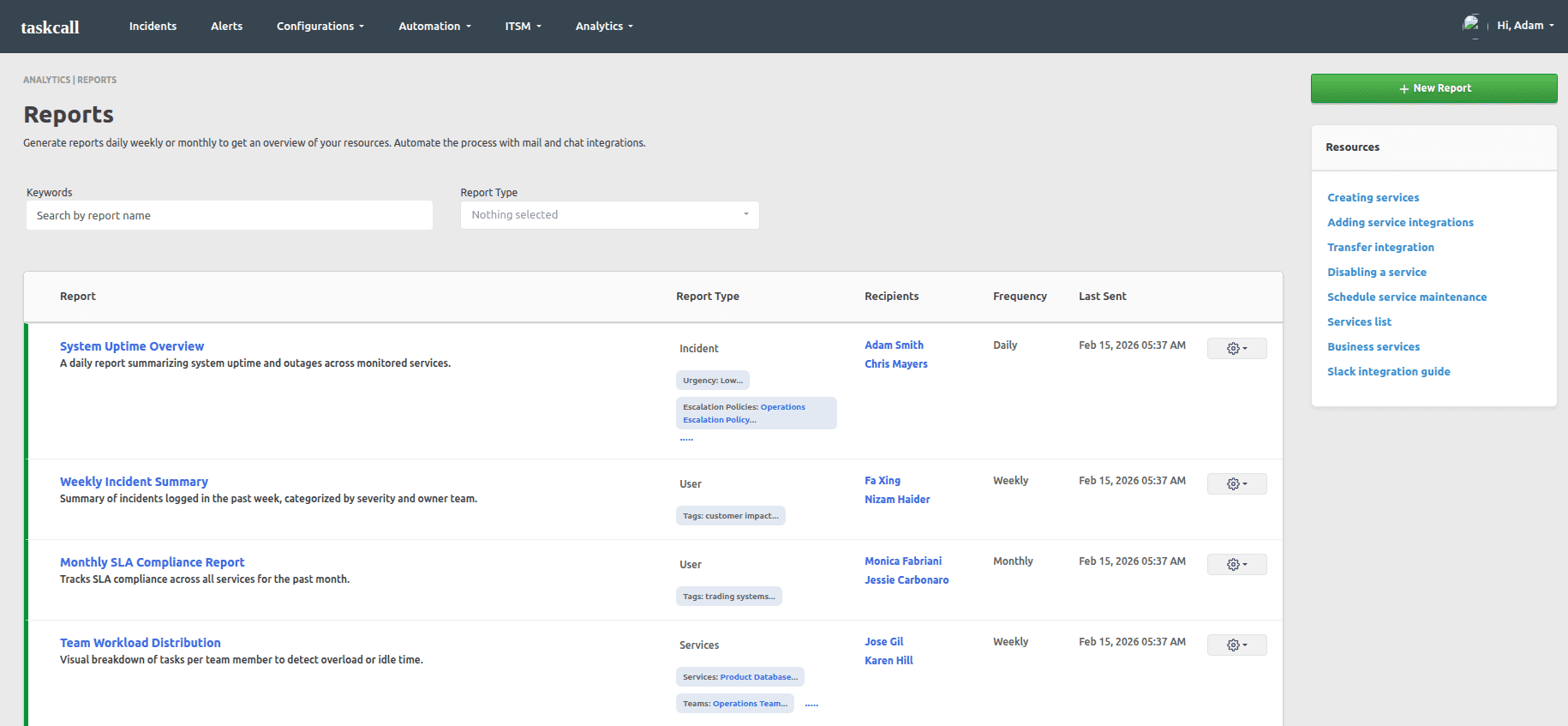
The reports page contains all existing reports that have been created or modified. The reports can also be filtered based on the report type and keywords. An organization admin can view, edit or delete an existing report and create a new report directly from this page.
Create New Report
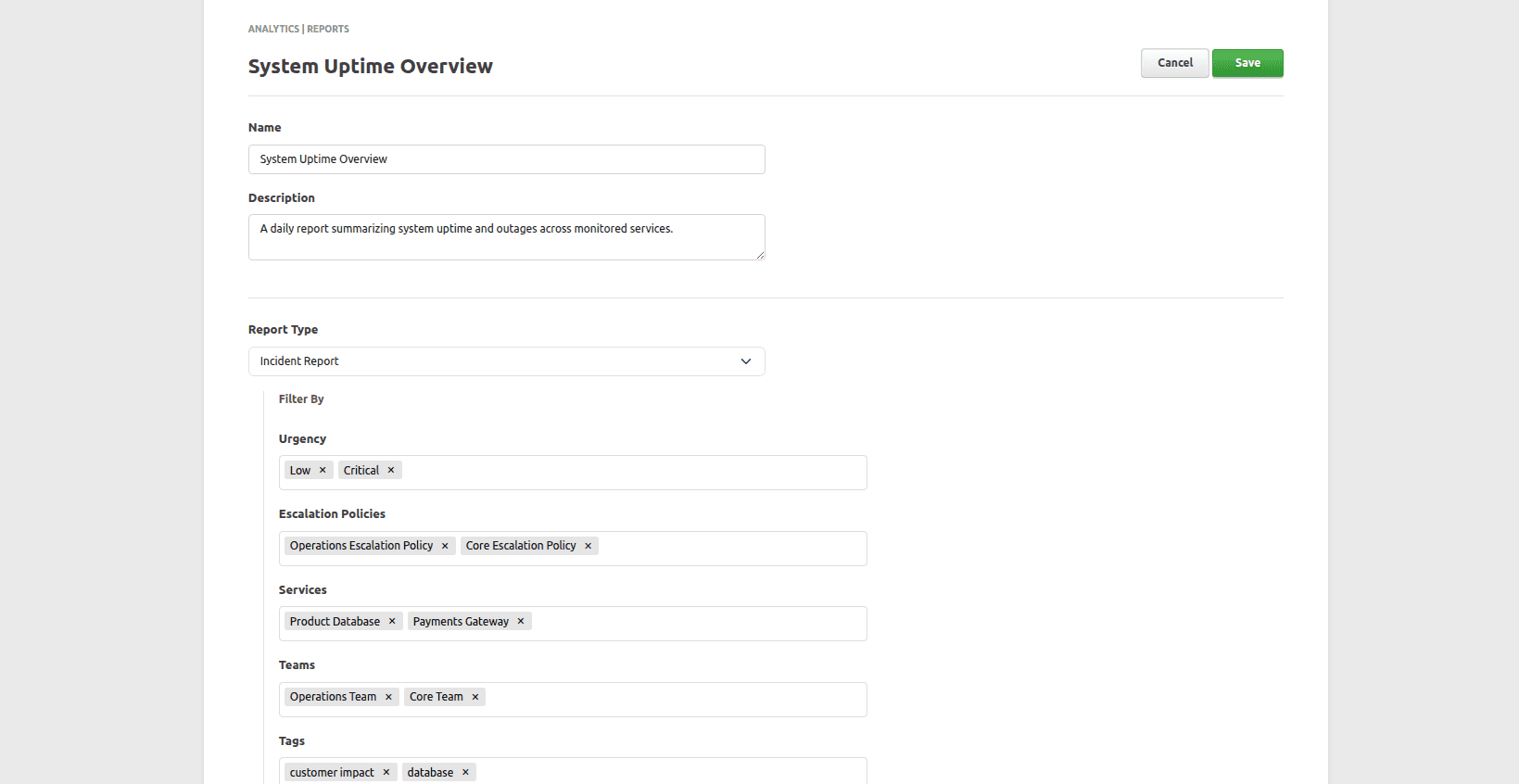
- To create a new report, navigate to Analytics > Reports > New Report.
- Give the report a name and describe what it is for.
- Select the type of report. Some options will be available for you to filter the report by depending on the type of report selected. Select the filters you would like to apply.
- Select the report format. It can either be PDF or CSV.
- select the recipients you would like the report to be sent to. You can choose up to 5 recipients for a report. The report will be emailed to each of these recipients.
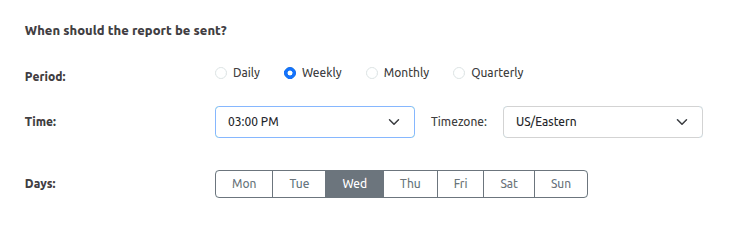
- In the schedule section, select when, at what timezone and how often the report should be sent. If you select a period other than Daily, then you will also need to select the day of the week the report should be sent on. Monthly and quarterly reports are sent on the first occurrence of the selected day after the period ends. If Tuesday is selected for a monthly report, then it will be sent out on the first Tuesday of the following month.
Edit Report
Edit: To edit a report, go to Analytics > Reports. Click on the name of the report you would like to edit. You can also click on the gear icon to the right of listed report item and select the option to Edit.
Delete: To delete a report, go the Analytics > Reports. Click on the gear icon to the right of the listed report item and select the option to Delete.