Broadcasts
Broadcasts are mass notifications send to one or more teams and/or individual users. They are used to get out information quickly to a group of people for the purpose of notifying or to get a fast response. They can be used to notify employees about a planned network change, an office closure, a company-wide announcement or a callout to fill a shift.
Broadcasts are delivered over push notification, SMS and phone calls. They can be configured to require a response from recipients and automatically close out if enough recipients respond. If not the broadcast can be escalated to further recipients to fill in the minimum required responders. They are designed to automate the workflow to not only notify a large group of users, but also to get them to respond optimally without unnecessary interruption.
Creating a Broadcast
Broadcasts can only be created and dispatched by admins. To send a broadcast:
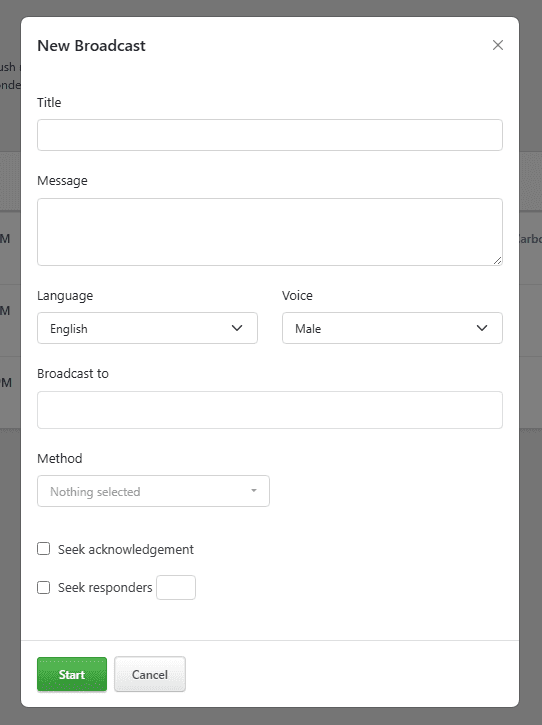
- Go to ITSM > Broadcasts and click New Broadcast.
- Provide the following details:
- Title: Give the broadcast an easy to understand name.
- Message: Describe what the broadcast is about. If you would like the recipient to respond to the broadcast, then you may also want to mention that here.
- Language: The language used for the notification text and voice call (English, French, German, or Spanish).
- Voice: Whether to use a male or female voice for text-to-speech for broadcasts sent by phone call.
- Broadcast To: The escalation policies and/or individual users who the broadcast should be sent to.
- Notification Method: Select the notification methods that should be used to send the broadcast. Available methods are Push Notification, SMS, and Phone Call.
- Seek Acknowledgement: (optional) Lets recipients respond back to the broadcast by acknowledging it. If this option is selected, then SMS and voice call notifications will share a code for each recipient to respond back to the broadcast directly from the SMS and voice call. Recipients will also be able to acknowledge from the web and mobile app.
- Seek a minimum number of responders: (optional) Set a target number of responses you want to track for this broadcast. The broadcast will close as soon as this minimum number of responders is reached.
- Click Start to initiate the broadcast.
Broadcasts List
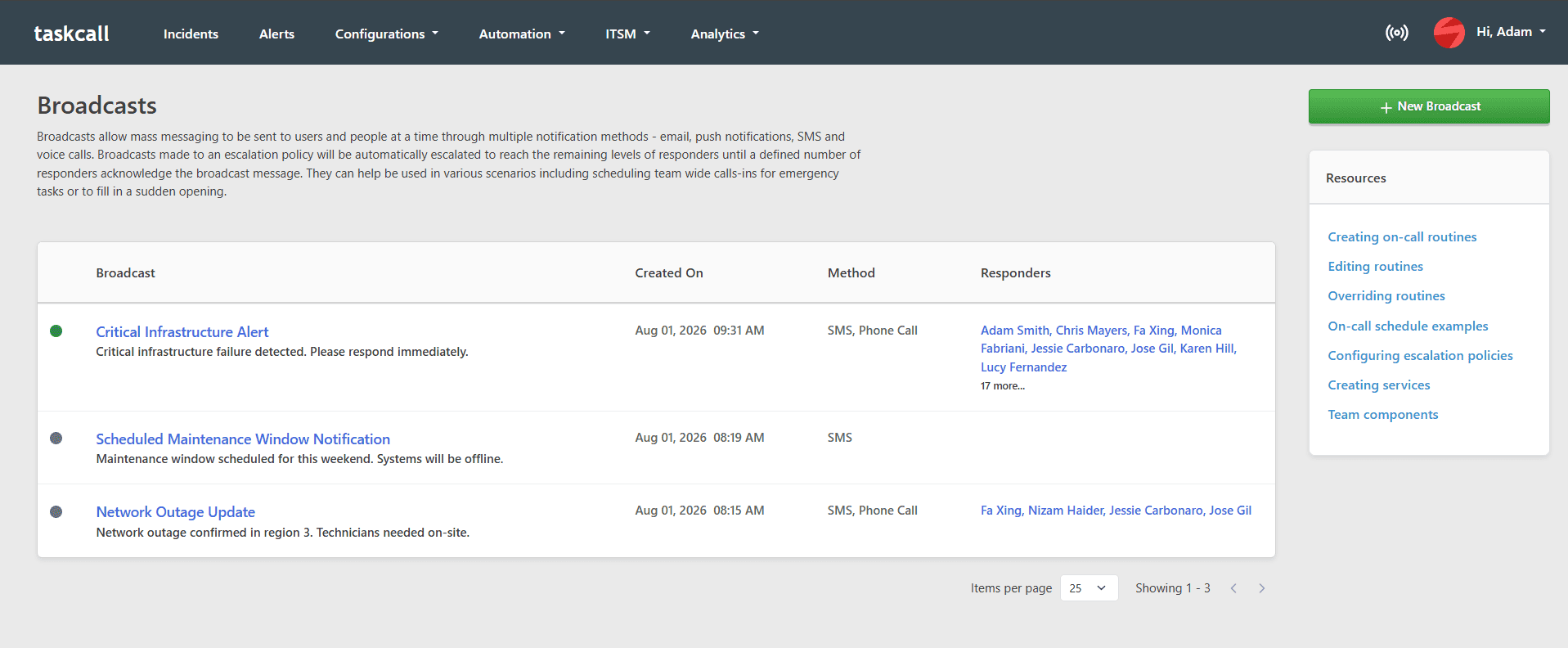
The Broadcasts page lists all the broadcasts that have been initiated in an organization, along with when it was created, the notification methods used, and how many people have responded. This page is only accessible to users with admin rights. Click on a broadcast to see more details.
Broadcast Timeline and Responders
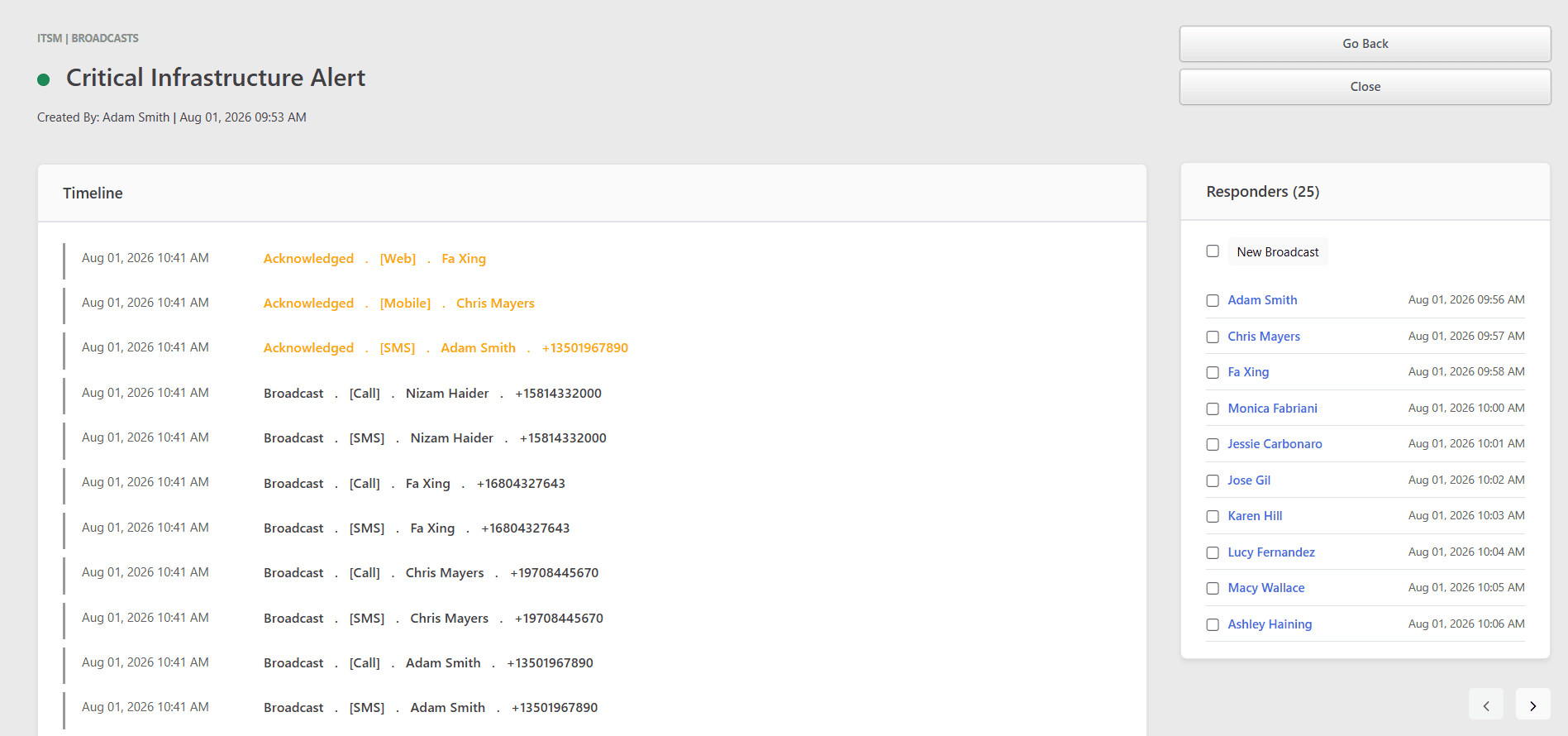
The broadcast details page shows the configuration the broadcast was sent with, along with:
- Timeline: A log of message deliveries and responses from users. A breakdown of the notification methods used for each message can be found here.
- Responders: The list of recipients who have acknowledged and responded to the broadcast, in the order they responded.
Broadcasts that seek acknowledgement from a minimum number of responders will be automatically closed once that number of responses is reached. Other broadcasts can be closed manually from the broadcast details page.
A follow-up broadcast can also be created from the list of responders so that only the selected responders will be notified.
My Broadcasts
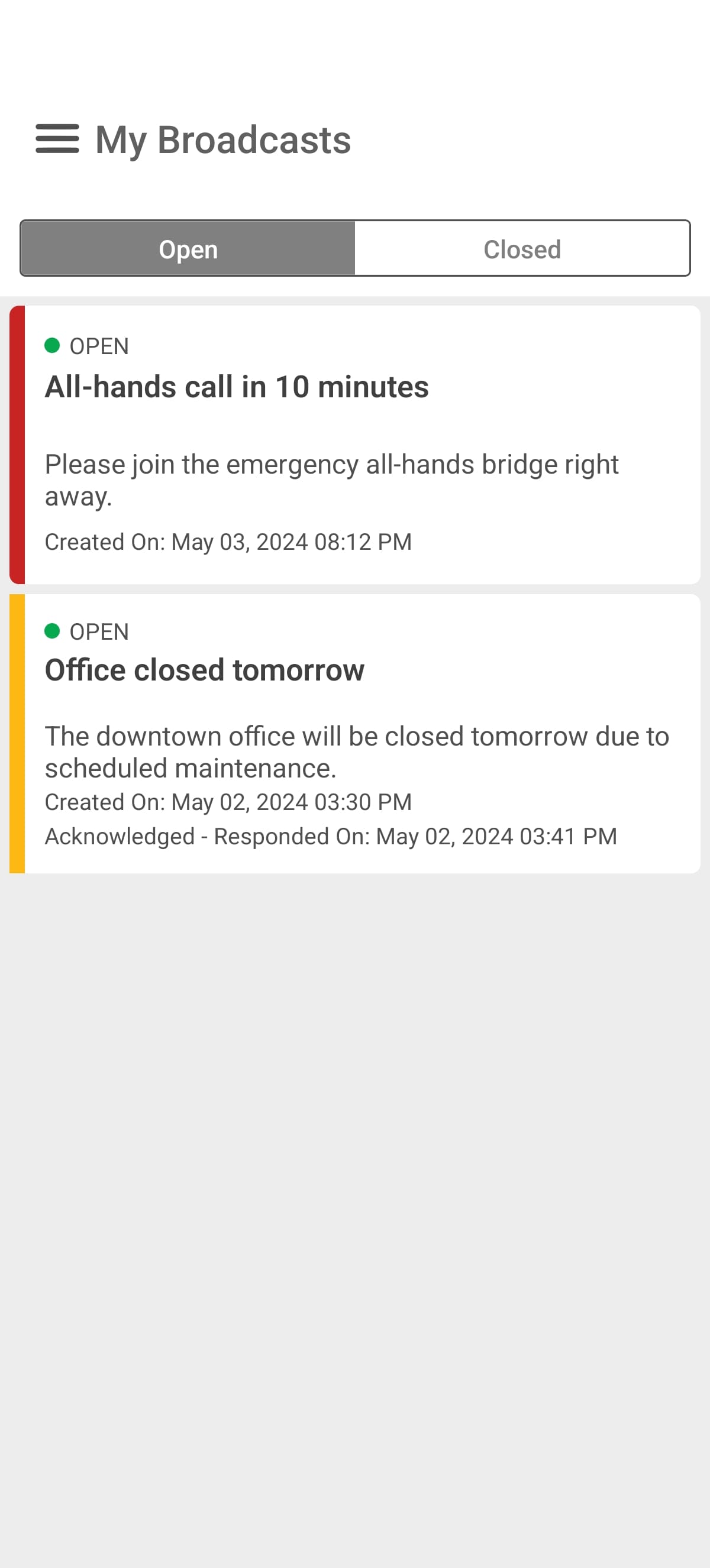
Apart from SMS and voice call notifications sent to them, users can also see their respective broadcasts from both the web and mobile apps. On the web app, users can navigate to their broadcast page by clicking the radio icon next to their profile picture on the top right corner of the navigation bar. If a broadcast has not been closed, users will be able to acknowledge it from the web application as well.
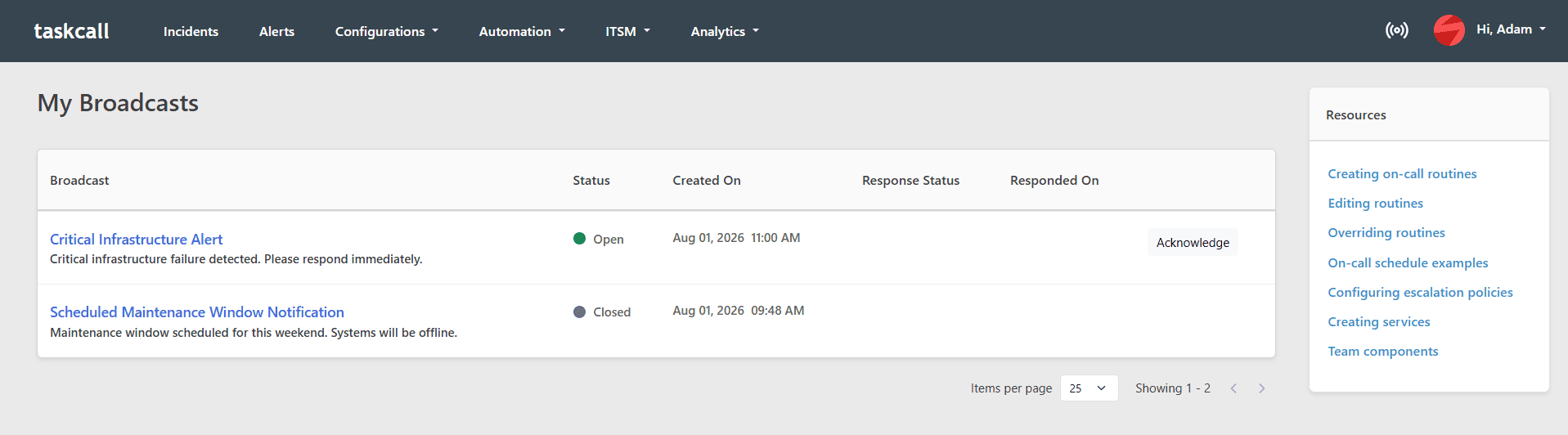
On the mobile app, users can navigate to their broadcasts from My Broadcasts option in the navigation bar. To acknowledge, click the Ack button that is revealed when you swipe left on the broadcast message.