Slack Incident Management: Setup Guide, Commands and Real Use Cases
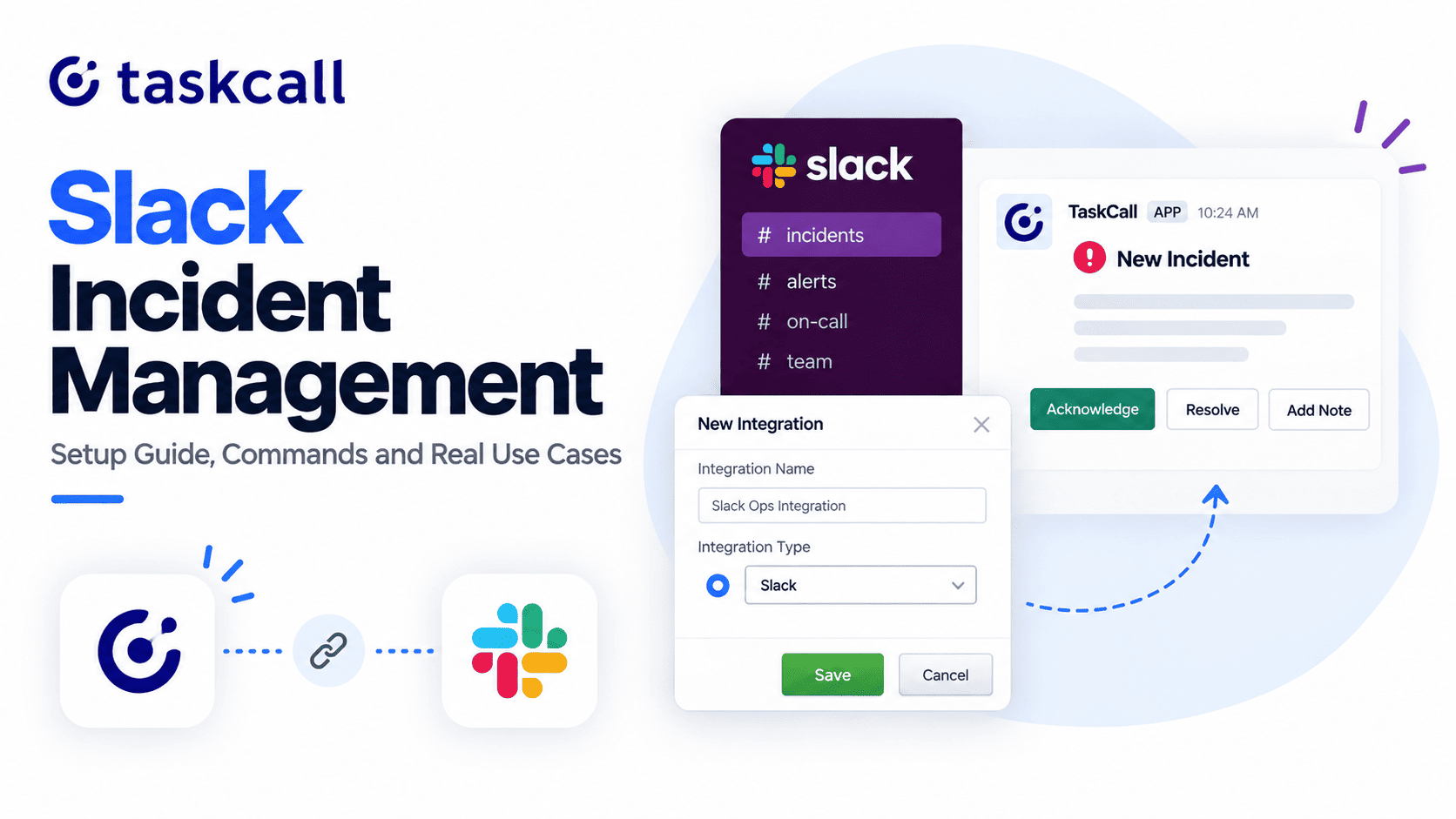
Ask an on-call engineer where an incident really gets handled. The answer is Slack, not the alerting tool and not the ticket queue. That stays true whether your tooling supports it or not.
When it doesn't, the work splits in two. Alerts land in one place and the conversation happens somewhere else. So people fill the gap by hand, pasting screenshots and asking who's looking at it. Meanwhile the clock runs.
This guide shows you how to connect TaskCall to Slack so alerts, acknowledgements and escalations all happen in the channel. Setup takes about four steps. One of them trips up most teams, so it gets its own section below.
Why Slack Matters for Incident Management Tools
Chat isn't a nice extra. For most teams, it's the surface where the response actually happens.
Faster Acknowledgement and Lower MTTA
MTTA is the metric nobody tunes and everyone complains about, and the delay is rarely the person. Think about the sequence. The phone buzzes, the laptop opens, you log in, then you hunt for the right incident. That's four steps before anyone has done anything useful.
A Slack notification collapses all of that into one tap. So if you track incident metrics at all, this is the change that moves MTTA first.
Less Alert Fatigue Through Narrow Alert Management
Most teams answer noisy alerting with a single #alerts channel, and everyone mutes it within a month. Alert management works better when routing is tight. TaskCall pairs one service with one Slack channel, so the payments channel only ever carries payments alerts.
Nobody writes filter rules and nobody tunes out. A notification in your channel is relevant by default.
One Shared View for the Incident Response Team
Without a shared surface, the first ninety seconds go to a pointless question: is anyone on this? Two engineers dig into the same thing while a third asks about it in another channel. An acknowledgement posted in the channel ends all of that before it starts.
There's a quieter benefit too. Notes added through the integration attach to the incident record itself. So "we saw this last quarter, it was the connection pool" survives past the channel scroll.
What the TaskCall Slack Integration Does Inside a Channel
An incident triggers on a connected service. TaskCall then posts a notification with the details and any metric snapshots the source tool sent. Underneath sit the actions.
| Action | What it does | Plan |
|---|---|---|
| Acknowledge | Takes ownership, so the channel stops investigating in parallel | All plans |
| Resolve | Closes the incident out | All plans |
| Add Note | Attaches context to the incident record, not just chat history | All plans |
| Escalate | Passes it up the escalation path to secondary support | All plans |
| Reassign | Hands it to a different responder | All plans |
| Add Responders | Pulls people in through their own notification rules | Business, Digital Operations |
| Run Response Set | Fires a group of actions in one click | Business, Digital Operations |
| Post Status Update | Posts progress so stakeholders stop asking | Business, Digital Operations |
The first five cover almost everything a responder does at 3 am. The last three matter once an incident needs coordination rather than just a fix.
Add Responders earns its keep. An @-mention reaches whoever happens to be reading Slack, while adding a responder reaches them through their configured rules instead. At 3 am, those are very different things.
Slack Incident Management Setup Guide
Before You Connect
First, check two things. You need admin access in TaskCall, and you need permission to install apps in Slack. If your workspace gates new apps behind approval, sort that out now. Otherwise the authorisation step stalls with no clear error.
Next, decide which channel pairs with which service. The integration links one service to one channel, so five services across five channels means running this five times. Each run takes a couple of minutes, but plan for it rather than finding out mid-setup.
Connect a Service to a Slack Channel
- Log in to the TaskCall web app.
- Go to Configurations > Services and pick your service.
- Open the Integrations tab on the service details page.
- Click New Integration.
- Name it something you'll recognise later. "Slack — #payments-oncall" beats "Slack" once you have six.
- Select the top radio button for a built-in integration.
- Choose Slack from the list, then click Save.
- Slack shows its authorisation screen. Pick your channel and click Allow.
- You land back in TaskCall.
- Check the Integrations tab. If it's listed, you're connected.
No webhook URLs and no tokens to copy between tabs. Repeat for each service, and see the Slack integration guide for the version with screenshots.
Verify Every User on Your Incident Response Team
Here's where rollouts break. A live integration doesn't mean your team can use it. Every responder must link their Slack account to their TaskCall account first, because TaskCall accepts actions from verified users only. Until someone verifies, the buttons show up and do nothing.
The command is /taskcall verify-user followed by your TaskCall preferred username. Run it once, anywhere in the workspace, and it carries across channels. Verify for #payments and you're set for #search too.
Do this before you announce the integration, because otherwise the pattern is predictable. The first page lands out of hours, the responder taps Acknowledge, nothing moves, and they assume the tool is broken. Post the command, watch people run it, then go live.
Slash Commands for SlackOps
Four commands, all prefixed with /taskcall. Use verify-user with a username to link accounts. Use get-user to check which TaskCall username is linked to you, and remove-user when someone leaves the team.
Then there's the useful one. Type /taskcall create-incident and add a title, like "Checkout timing out for EU cards". That raises an incident on the connected service right away. Run it without a title and you get more range. A Create Incident button appears in the channel, and the form behind it covers every TaskCall service.
One gap is worth naming. No command returns who's currently on call. Schedules live in the web app, and you can sync them to a calendar. In practice the alert routes to the right person anyway, and their name shows the moment they acknowledge.
Everyday Scenarios in a Slack Incident Management Workflow
The 3am Page and the Escalation Path
An alert fires on payments and lands in #payments-oncall, and the on-call engineer gets it on their phone. They tap Acknowledge and that's it. Anyone who wakes up and checks the channel sees it's handled, then goes back to sleep.
No laptop, no login. If it turns out to be a database problem, Reassign moves it along the escalation path in one tap.
When Support Spots the Problem First
Support often knows before monitoring does, and a customer might email about failed payments twenty minutes early. The agent runs /taskcall create-incident in their own channel and picks payments from the form. That pages the right engineer through the normal policy. Compare that to posting in an engineering channel and hoping.
Big Incidents That Need More Responders
Something breaks across services and you need the network engineer, the DBA and someone from the app team. Add Responders reaches all of them through their own notification rules. Then Post Status Update keeps the VP out of the channel while you work.
Already have a known sequence for a known failure? A response set runs it in one click.
Repeat Alerts and Shared Context
Same alert, third time this quarter. Add Note attaches what you found to the incident record. The next responder then starts from your notes rather than from zero. This is the least dramatic use here, and over a year it's probably the most valuable.
How the TaskCall Slack Integration Helps DevOps and Other Roles
Buyers evaluate incident tooling and everyone else uses it. So the integration lands differently depending on your seat.
DevOps and SRE Teams on Call
You hold the pager, so the change is practical rather than philosophical. Acknowledge from the notification, escalate when it isn't yours, and reassign when it clearly belongs elsewhere. Add Note pays off later. That connection-pool fix from 4am sits on the record for whoever gets paged next.
Carrying more than one service? The per-channel split helps there too, since you can tell which system is unhappy before reading a word. Our DevOps incident management page covers the wider setup.
IT-Ops and NOC Teams Handling IT Alerting
At volume, IT alerting is a triage job more than a repair job, and most of what arrives needs routing. Reassign and Add Responders handle that from the channel. Because responders get notified through their own escalation policies, handover doesn't depend on someone watching Slack.
Shared ops channels tend to drift toward one channel per system anyway. The service-to-channel pairing gives you that by default.
Support and Customer-Facing Teams
Support sits closest to the customer, so they see impact early. The create-incident form lets them declare against any service, so they don't need to know how payments alerting is wired. They just pick it from a list.
Engineering Managers and Incident Commanders
Running an incident is mostly two jobs: getting the right people on it, then keeping everyone else informed. Add Responders covers the first. Post Status Update covers the second, and it stops the channel filling with update requests while you work. For a broader view of how teams coordinate here, see our notes on team collaboration.
Stakeholders and Business Leads
Nobody outside engineering should read an alert payload to learn whether things are fixed. Status updates give them somewhere to look that isn't the engineer's DMs. For customer-facing comms, status pages take it further.
Teams Moving From PagerDuty or Opsgenie
Cost usually drives the PagerDuty move, while timing drives the Opsgenie one, since support ends in April 2027. Either way, the Slack setup is the first thing most teams rebuild, because it's what people touch daily.
Go service by service rather than doing it all in one weekend. The channel structure you end up wanting is rarely the one you'd draw up front. We've written more on the Opsgenie shutdown, and you can compare TaskCall and PagerDuty directly.
Start With One Service, Then Expand
If your team already handles incidents in Slack informally, this mostly formalises what they do anyway. Pick one service to begin with, ideally the noisiest one. You'll learn fastest there whether the channel split suits you. Connect it, verify that rotation, run it for a week or two, then add the rest.
Start a free trial and connect your first service. Prefer to see the screens first? Read the integration guide. Comparing options or planning a migration? Get in touch and we'll reply within four hours.
Slack Incident Management FAQ
Does the integration connect my whole workspace or one channel?
One channel, paired with one TaskCall service. If you want alerts from five services in five different channels, you set up five integrations. Each one takes a couple of minutes. The upside is that channel membership becomes your routing layer. The payments channel only ever carries payments alerts, so nobody writes filter rules.
Why aren't the Acknowledge and Resolve buttons working?
Nearly always because the user hasn't verified their account. TaskCall accepts actions from verified users only. So the buttons render for everyone but respond to nobody until that link exists. Run /taskcall verify-user followed by your TaskCall preferred username, once, anywhere in the workspace. Then check it took with /taskcall get-user.
Can I raise an incident for a service that isn't connected to my channel?
Yes. Run /taskcall create-incident with no title after it. A Create Incident button appears in the channel, and the form behind it covers every service in your TaskCall account. This is what makes the integration useful for support teams. They often spot problems early, but rarely know which channel a service alerts into.
Which actions need a paid plan?
Add Responders, Run Response Set and Post Status Update need the Business or Digital Operations plan. Acknowledge, Resolve, Add Note, Escalate and Reassign work on every plan. Those five cover most of what a responder does during an incident. See pricing for the full split before you build a process around the gated ones.
Is there a command to check who's on call?
No. The four slash commands are verify-user, get-user, remove-user and create-incident. On-call schedules live in the TaskCall web app, and you can sync them to Google Calendar or Outlook. In practice the alert routes to the on-call person automatically, and their name appears the moment they acknowledge.
How does this compare to a PagerDuty Slack integration?
The action sets look broadly similar. Both let you acknowledge, resolve, escalate and reassign without leaving the channel. The differences sit elsewhere. PagerDuty offers a who's-on-call command that TaskCall doesn't, while TaskCall's per-service channel pairing handles routing without filter rules. Pricing tiers differ too, so compare TaskCall and PagerDuty on the plan you'd actually buy.
What happens to notes I add from Slack?
They attach to the TaskCall incident record rather than living only in channel history. That matters more than it sounds. Channel scroll disappears, but incident records don't. The next person paged for that alert gets your findings instead of starting cold.
Do all responders need a TaskCall account?
Yes. Verification links an existing TaskCall account to a Slack identity, so it can't create one for you. Add them as a user in TaskCall first. Put them on the relevant escalation policy, then have them run the verify command. Doing it the other way round produces a confusing error.
Can I do the same thing in Microsoft Teams?
Yes. TaskCall has an equivalent Teams integration with a comparable action set. Setup follows roughly the same path through the service Integrations tab. See the Microsoft Teams integration guide for the specifics. Or browse all integrations if you're wiring up monitoring tools too.
You may also like...
TaskCall is 50% cheaper than PagerDuty on all pricing plans and offers the same reliability and service commitment. Even the free tier is available for up to 10 users and offers a package of features tailored specifically for small teams.
Looking for OpsGenie alternatives as teams migrate in 2026? Discover the 7 best tools for incident management, alerting, and on-call scheduling. Learn more.